Free · Browser-Based · Batch Conversion
Image Converter
Convert JPG, PNG, WebP, AVIF, BMP, GIF, and SVG images directly in your browser. Set a different output format for each image, then download the results.
AVIF export only appears when your specific browser supports it — the tool tests this automatically on load.
Convert image formats
Drag & drop images here
or click anywhere in this box to choose files
Supports JPG, PNG, WebP, AVIF*, BMP, GIF, SVG · Up to 10 MB each
Settings guide
What each control actually does
Every image in a batch has its own format and rename controls — here's what each one changes.
| Setting | What it does | Recommended use | Best for |
|---|---|---|---|
| Output format | Sets the file type produced for that image when you press Convert. | WebP by default | Matching the format a site, portal, or app expects. |
| AVIF option | Only listed when your browser passes a live AVIF-encode test on page load. | Use WebP if missing | The smallest file, when your browser actually supports it. |
| SVG (Original) | Only shown for SVG uploads; keeps the file exactly as-is instead of rasterizing it. | Keep for vectors | Logos and icons that must stay scalable. |
| Rename | Edits the file name inline; the new name is used for that image's converted download. | Rename before converting | Skipping a rename step on your device afterward. |
| Convert / Convert All | Convert one image with its own button, or process every uploaded image at once. | Convert All for batches | Sets already chosen per image before running the whole batch. |
| Download / Download All | Download a finished image from its card, or trigger every converted file as a sequence of downloads. | Not a ZIP | Grabbing every result without opening each card. |
Output format guidance
Choosing the right output format
What this tool actually supports for each format, and how each output is generated.
| Format | Best for | Transparency | Support in this tool |
|---|---|---|---|
| JPG / JPEG | Photos where a flat background is fine | Not supported — transparent areas are filled white | Always available · 85% quality |
| PNG | Logos, screenshots, graphics needing transparency | Supported | Always available · Lossless |
| WebP | Modern websites and web apps | Supported | Always available · 85% quality |
| AVIF | Maximum compression on supporting browsers | Supported | Detected live · 85% quality |
| GIF | Simple static icons | Binary only | Static output only · browser-dependent |
| BMP | Legacy software, print workflows | Not supported — transparent areas filled white | Always available · 24-bit Truecolor BMP |
| SVG | Vector graphics, logos, icons | Supported | Kept as-is, not rasterized |
Example result
Same image, different format
A PNG converted to WebP. Actual output size depends on your source image and the format you choose — this is one example, not a guaranteed result.
Original PNG
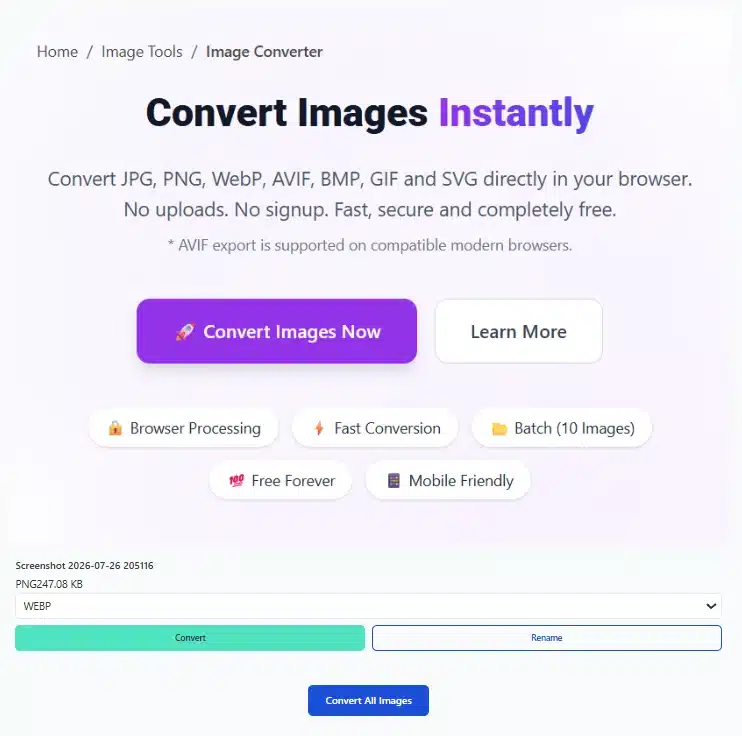
Uncompressed, universally supported, but heavier for web delivery.
Converted WebP
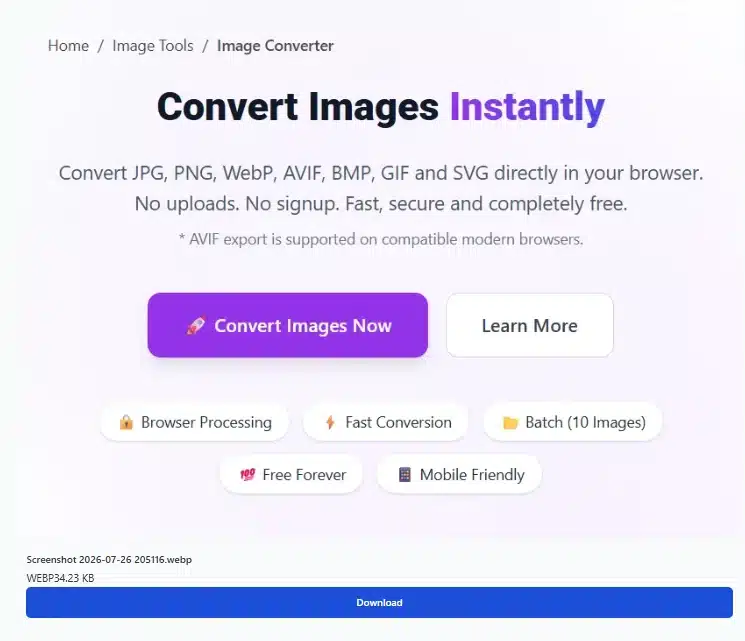
Similar visual appearance in a modern format — output size and any visual difference depend on the source image.
Browser technology
How conversion works without a server
This tool re-encodes images using the HTML5 Canvas API and pure client-side binary encoders. Your files are read and converted in the same tab — nothing is uploaded as part of this workflow.
Read the technical build guide
Curious how the code behind this tool actually reads, re-encodes, and exports images entirely client-side? Here's a full step-by-step build guide.
Read the technical guideWhat happens when you convert
Common use cases
When picking the right format actually matters
| Problem / use case | Recommended settings | Result, benefits & where to use |
|---|---|---|
| Website migration Moving off a CMS that only stored PNGs. | WebP or AVIFBatch convert | A smaller image library ready to re-upload without re-editing each file. |
| Print & design handoff A vendor expects BMP or a flattened JPG. | BMP or JPEG | Produces genuine 24-bit uncompressed BMP or clean flattened JPEG files. |
| Government / form portals Only JPG or PNG uploads are accepted. | JPG or PNG | Converts phone photos or AVIF assets into the exact type a portal requires. |
| E-commerce marketplaces Different platforms accept different formats. | Convert once, reuse | One product photo set adapted to each marketplace's accepted formats. |
| Logo & icon delivery A platform doesn't accept SVG uploads. | Keep SVG masterConvert a PNG copy | A flattened PNG for tools that need it, without discarding the original vector file. |
| App store assets Icon uploads require a flat PNG. | PNG | Matches strict app icon specs with no transparency variants. |
Troubleshooting
Common issues & quick fixes
AVIF is missing from the dropdown
The tool tests your browser's actual AVIF encode support on page load — not just whether it can display AVIF, but whether it can create one.
- Choose WebP instead — closest compression, always available here
- Try a current version of Chrome or Edge
- In-app browsers (Instagram, Facebook, LinkedIn) often lack full encoder support
PNG to JPG/BMP turns the background white
JPEG and 24-bit BMP do not support transparency, so this tool fills transparent areas with clean white during conversion — expected behavior, not an error.
- Use WebP or PNG output when transparency needs to be kept
- Only choose JPEG or BMP when a flat background is acceptable
Static GIF output shows "Failed"
GIF output relies on your browser's own canvas encoder, which is not universally supported in all browsers.
- Try PNG or WebP output instead for universal compatibility
- Use BMP for lossless flattened export
- Confirm the source image previewed correctly before converting
An animated GIF becomes a single still frame
Conversion runs through a single-frame canvas, so animated GIF input converts to one static frame.
- Keep the original GIF file if animation needs to be preserved
- Use this tool only for a static export of the image
An SVG upload isn't rasterizing
"SVG (Original)" keeps the file exactly as uploaded rather than converting it.
- Pick PNG, JPG, or WebP directly from the format dropdown instead
- Use "SVG (Original)" only when you want the vector file unchanged
An image won't upload
Only JPG, PNG, WebP, AVIF, BMP, GIF, and SVG files are accepted, up to 10 MB each.
- Check the file is one of the supported formats
- Confirm it's at or below 10 MB
- Remove and re-add the file if it doesn't appear
Frequently asked questions
Image conversion questions
Which formats can I convert between?
You can upload JPG, JPEG, PNG, WebP, AVIF, BMP, GIF, and SVG. Output options are JPG, JPEG, PNG, WebP, GIF (static), BMP (24-bit Truecolor), and AVIF when supported — or SVG kept as-is.
Does the AVIF option always appear?
No. The tool tests your browser's actual AVIF encode support on load. If that test fails, AVIF is left out of the dropdown entirely.
What happens to transparency when converting to JPG or BMP?
Transparent areas are automatically filled white, since JPEG and 24-bit BMP do not support transparency.
Is there a quality setting I can adjust?
JPEG, WebP, and AVIF output use a fixed 85% quality — there's no slider. PNG, BMP, and GIF don't use a quality value.
Can each image use a different output format?
Yes. Every uploaded image has its own format dropdown, so one image can go to WebP while another goes to PNG in the same batch.
Does Download All create a ZIP file?
No. It triggers each converted file as its own browser download, one after another, rather than a single archive.
Can I rename a file before downloading?
Yes. Use Rename on an image's card to edit its name inline before converting or downloading.
Are my images uploaded to a server?
No. Conversion runs in your browser using client-side Canvas and binary encoders; the page doesn't send your files anywhere over the network for this workflow.
Related tools
Explore more image tools
Convert another image
Convert another image directly in your browser — no account required.
Start converting ↓