No account · Free · No watermark
Image Compressor
Reduce JPG, JPEG, PNG, and WebP image sizes directly in your browser. Choose your quality level and output format for each image.
Drag & drop images here
or click anywhere in this box to choose files
Supports JPG, JPEG, PNG, WebP · Up to 10 MB each
Settings guide
Choose settings for the result you need
Choose the result you need, then adjust the actual controls in the workspace.
| Setting | What it does | Recommended use | Best for |
|---|---|---|---|
| Quality | Controls JPEG and WebP output compression. | Start around 80% | Balancing a smaller file with retained detail. |
| Output format | Changes the compressed image file type. | WebP for web use | Modern websites and sharing where compatible. |
| Multiple images | Processes up to ten selected files. | Use when needed | A folder of images that needs consistent output. |
| Rename before compression | Sets the name used when you download the finished image. | Name clearly | Keeping batches easy to identify. |
| One by one or all | Compress a single selected image or process every image in the list. | Choose your workflow | Fine control or faster batch work. |
| Downloads | Download a finished image individually, or bundle finished images in a ZIP. | Download all | Delivering multiple prepared files. |
Output format guidance
Tips for image format
WebP is the default setting; choose another format if your use case needs it.
WebP
Default setting. A practical choice for smaller web-ready images.
JPEG
A familiar choice for photographs and broad compatibility.
PNG
Choose this when you need lossless output.
Keep original
Retain the source file format after compression.
Example result
See what changes, not just the file type
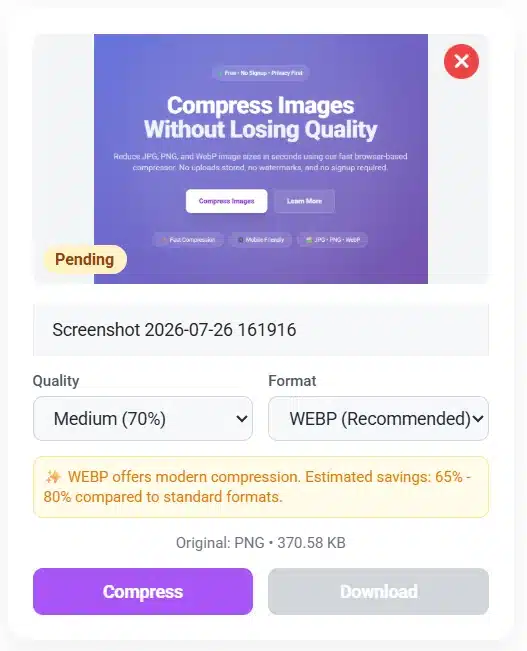
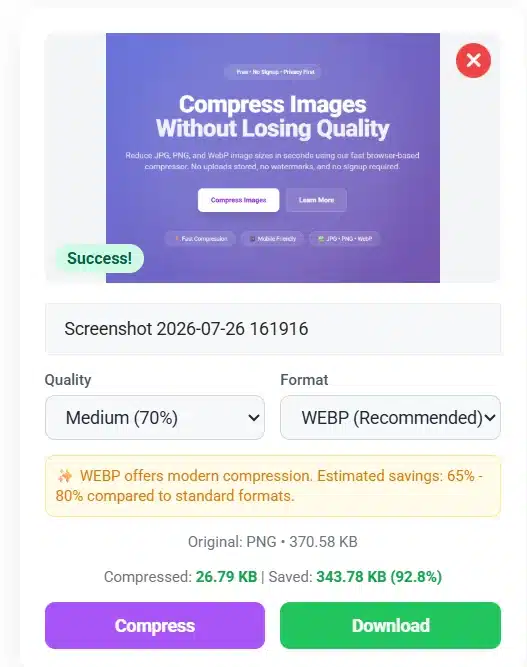
This example shows one sample PNG-to-WebP conversion. Your savings will vary depending on image content, dimensions, format, and chosen quality setting.
Original image Sample Before (PNG · 2.4 MB)
Compressed image Sample After (WebP · 420 KB)
Browser technology
Why image compression works in your browser
This tool uses standard browser capabilities to prepare image files locally, then lets you download the result.
Images can be processed locally
The compressor reads the file you select, processes it in your browser, and creates the selected output format. No separate compression server is required for this workflow.
Read the technical guideWhat happens when you compress
Common use cases
Choose the right compression workflow
| Problem / use case | Recommended settings | Result, benefits & where to use |
|---|---|---|
| Slow image loading Images are larger than a page needs. | WebPAdjust quality | Smaller files can reduce the data a web page needs to load. |
| Large email attachment A photo is difficult to send. | JPEGLower quality | A smaller attachment is easier to share by email. |
| Several images to prepare More than one file needs processing. | Multiple imagesDownload ZIP | Apply a consistent choice and download results together. |
| Website speed Pages contain heavy photographs or banners. | WebPAdjust quality | Smaller image assets can reduce the amount of data a visitor downloads. |
| Social media uploads Images need to be easier to upload or share. | WebP or JPEGBatch compress | Prepare several files with a consistent output choice. |
| Save storage space A local folder contains oversized images. | Multiple imagesDownload ZIP | Keep the originals, then save smaller copies separately. |
Troubleshooting
Common issues & quick fixes
Image not uploading
Only JPG, JPEG, PNG, and WebP images are accepted.
- Check that the file is an image.
- Keep each file at or below 10 MB.
- Try selecting the file again.
Compressed image looks blurry
The selected quality may be too low for the image detail.
- Move quality closer to 90%.
- Keep the original format where needed.
- Save the original before aggressive compression.
File size changed very little
Some sources are already optimized, and PNG is lossless.
- Try WebP or JPEG output.
- Lower the quality in small steps.
- Use a smaller source image when possible.
Compression takes too long
Very large images require more browser memory and processing.
- Process fewer images at once.
- Close other heavy browser tabs.
- Try a smaller source file.
Frequently asked questions
Image compression questions
Does compression reduce quality?
JPEG and WebP quality can be adjusted. Lower values usually make a smaller file but may soften fine detail. PNG encoding is lossless, although very large images may be scaled down before output.
Which image formats are supported?
You can upload JPG, JPEG, PNG, and WebP files. The compressor can create WebP, JPEG, PNG, or retain the original file format.
Can I compress more than one image?
Yes. You can select up to ten images at once, compress them individually or together, then download the successful results as a ZIP.
Why is my result still large?
Image detail, dimensions, format, and starting compression all matter. Try a slightly lower quality or a WebP/JPEG result if appropriate.
Can I rename a file before downloading?
Yes. Each image card has a file-name field. The chosen name is used for your download.
Can I download one image at a time?
Yes. Each finished image gets its own Download button, while multiple finished images can be downloaded as a ZIP.
What is the default output format?
WebP is selected by default. You can change it to JPEG, PNG, or keep the original format before compressing.
Can I compress each image separately?
Yes. Every selected image has its own quality, output format, Compress, and Download controls.