Free · No Signup · Privacy First
HTML to Image Converter
Paste HTML and CSS, preview it live, then export the result as a crisp image — all in your browser.
Paste your code and generate an image
Input
Drag & drop an HTML file here or
Uses a public proxy. May not work for all sites due to security policies (CORS). Fetched code will appear in the "Code" tab.
Settings & Output
Preview & Download
Your HTML preview will appear here
Settings guide
What each control actually does
| Setting | What it does | Recommended use | Best for |
|---|---|---|---|
| Input tabs | Code lets you paste HTML directly; File Upload accepts an .html/.htm file; From URL fetches a page through a public CORS proxy and drops the result into the Code tab. | URL fetch can fail on protected sites | Whichever matches how your content already exists. |
| CSS box | Always visible regardless of which input tab is active — its contents are injected as a style block alongside whichever HTML source you're using. | Keep styles here, not inline | Styling code pasted directly, or supplementing a fetched page. |
| Auto-size height to content | Automatically determines the output's height based on content. The Width field remains active to define the desired layout width. | Width sets column width | Content whose height varies but should render at a fixed width. |
| Scale | Multiplies the final image's pixel resolution without changing the rendered layout size — 2x/3x produce a sharper image at the same visual dimensions. | 2x for most screens | Retina displays or print use. |
| Delay | Waits exactly that many milliseconds before capturing — useful for animations or content that renders slightly after the page loads. | Increase for animated content | HTML with CSS transitions, animations, or async-loaded elements. |
| Copy to Clipboard | Always copies the image as PNG, regardless of what's selected in the Format dropdown. | Ignores Format setting | Pasting directly into design tools, chat apps, or documents. |
Output format guidance
Choosing an export format
A transparent background only stays transparent in formats that actually support it.
| Format | Best for | Notes |
|---|---|---|
| PNG | Transparent backgrounds, graphics, sharp text | Keeps a "Transparent" background setting genuinely transparent. |
| JPG | Photographic content, smaller files | No transparency support — a "Transparent" background typically renders black instead. |
| WEBP | Smaller, modern web-ready files | Preserves transparency, like PNG, with a smaller file size. |
Example result
Code in, image out
Actual results depend entirely on the HTML and CSS you provide — this is one example, not a guaranteed result.
Your code Input
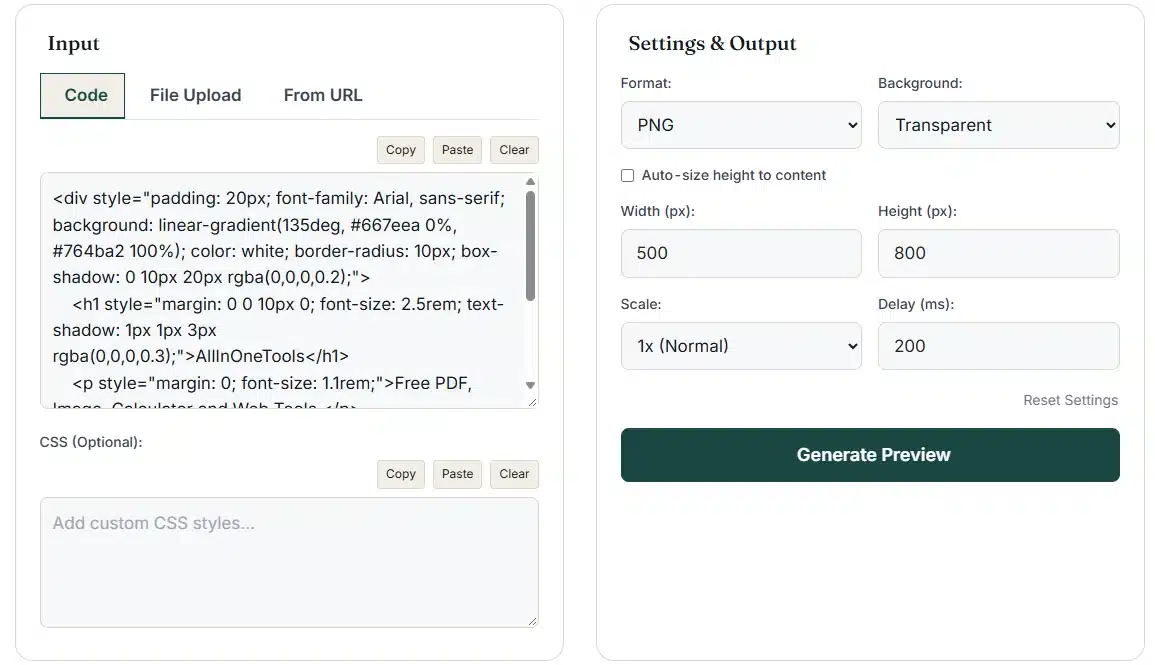
Any HTML and optional CSS you paste, upload, or fetch.
Generated image Output
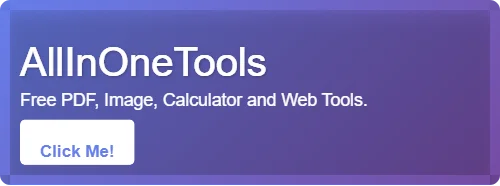
The rendered result, ready to download or copy.
Browser technology
How this works without a server
This tool uses html2canvas, a library that walks a rendered DOM tree and redraws it onto a canvas element pixel by pixel. Nothing is uploaded as part of this workflow.
What happens when you click Generate Preview
Honest by design
What this tool does — and doesn't
Stated plainly, before you run into it, rather than only after something looks unexpected.
Fetching a URL
Auto-sizing
Copy to Clipboard
Transparency
Cross-origin content
Rendering fidelity
Common use cases
What people actually convert for
| Problem / use case | Recommended settings | Result, benefits & where to use |
|---|---|---|
| Code snippet sharing A code example needs to look good on social media or Slack. | PNGScale 2x | A crisp, shareable image of styled code. |
| Web design mockup A layout needs to be shared for feedback without deploying it. | Auto-size height | A quick visual for client or team review. |
| Technical documentation A guide needs an image of rendered HTML output. | White background | A clean, embeddable image for docs or tutorials. |
| Email template fallback An email design needs an image version for restrictive clients. | JPGWhite background | An image fallback for email clients with limited HTML/CSS support. |
| Social media graphic A quote or announcement is designed in HTML. | Custom background colorScale 2x | A shareable, on-brand graphic. |
| Website snapshot A page's rendered appearance needs to be captured for reference. | From URL | A visual snapshot for reference. |
Troubleshooting
Common issues & quick fixes
A downloaded JPG shows a black background instead of transparent
JPG has no alpha channel, so a "Transparent" background setting typically renders as black in that format.
- Switch to PNG or WEBP if transparency needs to be kept
- Or set Background to White or a custom color before downloading as JPG
"Failed to fetch URL" when using From URL
The public proxy this tool relies on can be blocked by a site's own CORS policy or security headers — this affects many modern websites.
- Try a simpler page, or copy the page's HTML manually into the Code tab instead
- Some sites will never be fetchable this way, by design of their own security settings
My auto-sized image is wider or narrower than expected
Auto-size only controls height — the Width field's value is still used for the canvas width.
- Adjust the Width field to your desired layout width
- Uncheck Auto-size if you need full manual control over both dimensions
Copy to Clipboard doesn't match my chosen Format
Copy always uses PNG internally, regardless of whether Format is set to JPG or WEBP.
- Use Download Image instead if you specifically need a JPG or WEBP file
Animated or async content is missing from the image
The capture happens after the Delay you've set — if that's shorter than how long your content takes to fully render, parts of it can be missed.
- Increase Delay to 500ms or higher for animated or script-driven content
Download or Copy fails after a preview looked fine
If your HTML references images from another domain without proper CORS headers, the browser can block exporting the canvas even though the preview rendered correctly.
- Use images from sources that allow cross-origin access, or host them yourself
Frequently asked questions
HTML to image questions
Is my HTML code uploaded to any server?
For pasted code and uploaded HTML files, rendering happens in your browser and the content is not sent to our server. The optional URL import uses a third-party public proxy to retrieve the requested page.
What image formats are supported?
We support PNG, JPG, and WEBP formats. Each format has its own advantages: PNG for transparency, JPG for smaller file sizes, and WEBP for modern web optimization.
Can I customize the output size?
Yes! You can set custom width and height, or use our Auto-size to content feature to fit the output height to your rendered content. You can also choose different scaling factors: 1x, 2x, or 3x.
Does it work on mobile devices?
Yes. The interface is responsive and can be used on desktop, tablet, and mobile browsers.
Are there any limitations on HTML complexity?
The tool can handle most HTML content, but very complex layouts with external resources or advanced CSS might have some limitations. We recommend testing with your specific HTML to see the results.
Is this tool free to use?
Yes. The converter is free to use with no registration or watermark. Browser memory, rendering support, and external-resource limitations can still affect very complex inputs.
Ready to convert your HTML?
Paste your code, generate a preview, and export the result.
Start converting ↓