Text & logo watermarks · Up to 10 layers · Up to 5 images
Image Watermark Tool
Your image.
Your visible mark.
Add your name or logo to photos, drag, resize and rotate each layer, then copy the same watermark to every image in one click and save JPG, PNG or WebP. A visible watermark shows ownership; it cannot stop someone cropping it out.
Add images to watermark
Drop, paste or choose up to 5 images.
JPG · PNG · WebP · BMP · GIF · SVG · HEIC · 10 MB each
Checking available output formats…
Add layers to one image, then Copy layers to all if you want the same mark everywhere.
Watermark preview
The dashed box and corner handles are guides only and are not saved.
Removes every layer from this image only and resets its format and quality. There is no Undo.
Layers & download
A transparent PNG logo blends in most cleanly. Up to 10 layers per image; select a layer below to edit it.
0 / 10 layers
Higher numbers sit on top. Delete has no Undo.
Measured in pixels of the original image, from the left and from the top. Parts of a layer outside the image are cut off.
0% hides the layer. Transparent parts of a logo always stay transparent.
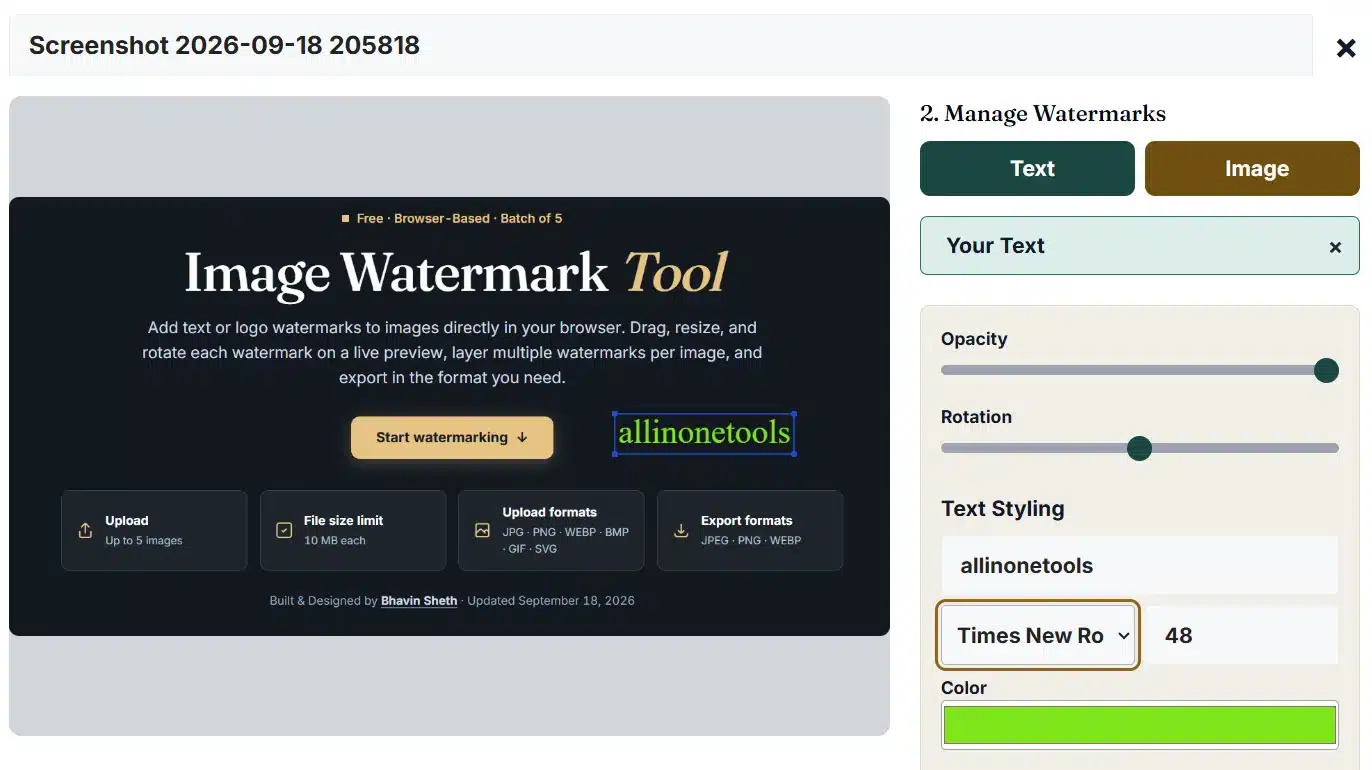
Fonts come from this device; if one is missing, a similar font is used. One line, up to 200 characters.
Outline 0 means no outline. Layer size scales text, outline and box together.
Placement guide
Choose the mark. Then its footprint.
Every control below changes only the selected layer. Select another layer in the list to edit it.
| Control | What it changes | Useful check |
|---|---|---|
| Drag or Center X / Y | Moves the middle of the layer, in original-image pixels. | Leave room at the edges, especially after rotating. |
| Layer size and corner handles | Scales text, outline and box together, or a logo without stretching it. | A small logo file looks soft when enlarged a lot. |
| Rotation | Turns the layer around its centre, from −180° to 180°. | A diagonal mark across the middle is harder to crop out. |
| Opacity | Makes the whole layer more or less see-through. | Check it over both light and dark parts of the photo; 40–70% is a common range. |
| Outline or text box | Separates text from a busy background. | Use the smallest outline that stays readable at the final size. |
| Copy layers to all | Gives every other image the same layers, scaled to its size. | It replaces their layers; check portrait photos, where a mark may cover the subject. |
How copying fits each image
Same spot. Same share of the picture.
Position follows the edges
A logo 90% of the way across and 90% down a landscape photo lands 90% across and 90% down a portrait one too, so corner marks stay in the corner.
Size follows the shorter side
If the next photo's shorter side is half as long, the copied layer is drawn at half the size, so the mark keeps a similar presence.
Each copy is independent
After copying you can move, resize or delete a layer on one photo without changing the others.
Logos share one budget
All logo layers together may use 12 MP. A large logo copied to five images can hit that limit; a smaller logo file avoids it.
Before & after
An example placement. Your setup stays your own.
Two screenshots of a visible watermark. They are not your live result, and any labels inside them belong to the screenshots.

What a watermark can do
A visible signature. Not a lock.
Saving merges the layers into the picture. Anyone with the file can still crop it, paint over the mark or take a screenshot.
How the saved file is made
Where placement matters
Match the mark to the image.
| Use | Suggested setup | What to check |
|---|---|---|
| Shop name on product photos for Instagram or a WhatsApp Business catalogue | Logo or text in a corner · 50–70% opacity · Copy layers to all | Keep the product itself clear; buyers need to see the details. |
| Photographer's client proofs | Large diagonal text across the centre · 30–50% opacity | Share the proofs, and send unmarked files only after approval. |
| Slides, infographics or social posts | Small text with a box or outline | Fonts come from your device; check the result where you will post it. |
| A mixed set of landscape and portrait photos | Set up one image, then Copy layers to all | Copies are scaled per image; nudge any mark that covers a face. |
| Heavy photos for a website | JPG or WebP output | Need it smaller still? Run the result through the Image Compressor. |
Export guide
Merge the layers. Keep the original.
| Output | Transparent areas | Quality setting | Good for |
|---|---|---|---|
| JPG | Filled with white | 0.10–1.00 | Photos; the default for JPG and HEIC originals. |
| PNG | Kept | Not used | Graphics, screenshots and images with transparency. |
| WebP | Kept | 0.10–1.00 | Websites, when this browser passes a WebP save test. |
Troubleshooting
Check the layer. Then the export.
I can't see my watermark
It may be transparent, off the edge or the same colour as the photo.
- Select it in the layer list.
- Press Center layer and raise opacity.
- Add an outline or a box.
My logo looks blurry
A small logo file is being enlarged.
- Use a larger PNG logo (up to 4 MP).
- Or lower the layer size.
- SVG logos are turned into pixels when added.
The text looks different elsewhere
Fonts come from the device that saves the file.
- Save on the device you trust.
- Choose Arial or Verdana for safety.
- Check the downloaded file.
The Download button went away
A layer, format or quality change clears the old file.
- Press Apply watermark again.
- Or Apply to all for every image.
- Renaming keeps the file.
Watermark questions
Before you share the marked copy
How do I add a watermark to a photo?
Add an image and press Add text or Add logo. Type your wording or pick a logo file, then drag the layer into place, pull a corner to resize it and set rotation and opacity. Choose a format, press Apply watermark and download the result.
Can I put the same watermark on all my photos?
Yes. Add up to five images, set up the layers on one of them and press Copy layers to all. Every other image gets the same layers, placed at the same relative spot and scaled to its size. Adjust any image if needed, then press Apply to all and download the ZIP.
Can I use both a logo and text?
Yes. Each image can have up to 10 layers in any mix of text and logos. Higher numbers in the layer list are drawn on top; Move forward and Move backward change the order.
How do I place the watermark exactly?
Drag the layer on the preview, or type Center X and Y in pixels of the original image, measured from the left and the top. Center layer puts it in the middle. Drag a corner handle to resize proportionally, even when the layer is rotated.
What do opacity, outline and the text box do?
Opacity makes the whole layer more see-through, from 0% (hidden) to 100%. An outline draws a coloured edge around each letter, and the box puts a solid colour behind the text with adjustable padding. All of them help text stay readable on busy photos.
Which fonts can I choose?
Arial, Verdana, Times New Roman, Courier New, Georgia and Impact, using the copies installed on your device. If one is missing, the browser picks a similar font. Text is a single line of up to 200 characters, sized from 8 to 500 px.
Which logo files can I use?
A PNG with a transparent background usually blends in most cleanly. JPG, WebP and self-contained SVG also work, up to 10 MB, 4 MP and 4,096 px on a side. All logos together may use 12 MP. Logos keep their proportions when resized.
Which photos can I watermark, and how large?
Up to five JPG/JPEG, PNG, WebP, BMP, GIF, HEIC/HEIF or self-contained SVG images of 10 MB each. Each can be up to 20 MP and 16,384 px on a side, 40 MP together, and each saved file up to 96 MB.
Does watermarking change the image size or quality?
The width and height stay the same. The layers become part of the picture, so those pixels change. PNG saves without compression loss; JPG and WebP use the quality setting. JPG and HEIC originals are saved as JPG by default to keep files small.
Will a watermark stop people copying my photo?
No. It makes ownership visible, but it can be cropped, edited out or covered, and this tool adds no hidden mark or copy protection. A larger mark across the middle is harder to remove. Always keep your unmarked originals.
Can I undo a layer change?
There is no Undo for layers. Delete layer removes the selected one, and Remove all layers clears the whole image and resets its format and quality. Your original file is never changed, and other images keep their own layers.
How do the ZIP and Stop work?
Apply to all saves each image in turn, and Download ZIP packs the finished ones; if some are missing, the button shows how many are included. Names end in -watermarked. Stop cancels the image in progress and skips the rest; finished files stay.
Are my photos and logo sent anywhere?
No. Images, logos and ZIP files are handled in your browser and are not sent to our server. Only a HEIC photo that this browser cannot open downloads a decoder from jsDelivr, without your image. Nothing is kept after a refresh.
Related image operations
Choose your next image step
Ready to place your watermark?
Return to your layers, or find more in the image tools and the full tools directory.