Decorative photo masks · Runs in your browser
Image Shape Cropper
Put your photo in a heart.
A star. A shape of your choice.
Frame a photo inside a built-in silhouette: hearts, stars, polygons, a ring or a crescent. Position the subject, check the transparent areas and save a shaped image. Built-in masks only; it does not draw custom shapes or remove backgrounds.
Add a photo to shape
Drag and drop, paste, or choose one image. Then pick a heart, star or another silhouette.
JPG · PNG · WebP · GIF · BMP · SVG · PDF page 1 · 10 MB
Checking output support…
Choose a decorative mask
Heart, star, polygons and cut-away shapes. Rectangle and Circle are here too; the dedicated croppers are linked below for those simpler tasks.
Selected source region
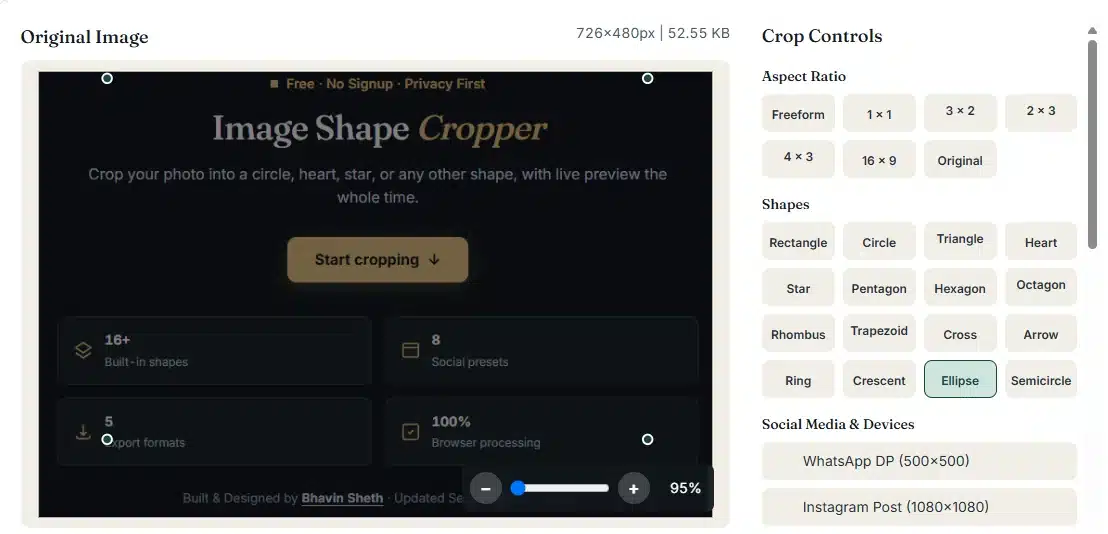
Drag the selection to position the subject under the mask. Resize a handle or enter pixels. Arrow keys move or resize by 1 pixel; Shift uses 10 pixels. Shapes other than Rectangle keep their built-in proportions.
Rotate or flip centers the selected shape again. View zoom changes only the editor. Rectangle ratios are available only in Rectangle mode.
Cutout and canvas preview
The shape fits inside the output size without stretching.
Size & download
Choose a platform and image type. The mask stays unchanged and fits inside the selected output size.
Settings guide
Choose the shape, then the file
The mask and source region decide what is kept. The size, format and quality decide the file you save.
| Setting | What it does | Recommended use | Best for |
|---|---|---|---|
| Shape | Choose one of 16 built-in masks. Heart is selected first. Each mask keeps its own proportions. | Heart or Star to start | Keepsakes, decorative tiles and badges. |
| Source region | Drag, resize or type X, Y, width and height to decide which part of the photo sits inside the mask. | Keep faces away from points | Placing the subject inside narrow shapes. |
| Rectangle ratio | Freeform, current image ratio, 1:1, 4:3, 16:9, 3:2 or 2:3. Available only for the Rectangle shape. | Rectangle mode only | Plain rectangular crops in this tool. |
| Rotate, flip and zoom | Rotate or flip the photo before masking. View zoom only magnifies the editor. | Recheck after rotating | Sideways photos and precise placement. |
| Output size | Selection size, a custom size or one of 26 social presets. The shape fits inside without stretching. | Selection size first | Profile photos, covers and thumbnails. |
| Format and quality | PNG, WebP when supported, JPG, 24-bit BMP or a one-page PDF. Quality 0.10–1.00 applies to JPG, WebP and PDF. | PNG for transparency | Keeping the outside of the shape clear. |
Sixteen silhouettes
Choose the boundary that suits the image
Hearts and stars
Use a heart for a photo keepsake or a star for a decorative cutout. Keep faces, lettering and fine detail away from narrow points and inward curves.
Triangles and polygons
Triangle, pentagon, hexagon, octagon, rhombus and trapezoid give a geometric boundary. The mask's proportions stay fixed as you resize the region.
Holes and cut-away shapes
The ring keeps an outer band and removes its center; the crescent removes a curved side. Check that important content does not fall into them.
Other silhouettes
Cross, arrow, ellipse and semicircle offer more framing choices. Rectangle and Circle are included for convenience.
Transparency choices
Keep the silhouette. Choose what surrounds it.
| Output | Outside, padding and holes | Quality setting |
|---|---|---|
| PNG | Transparent; existing transparency inside the mask is kept. | Lossless; the quality slider is ignored. |
| WebP | Transparent, when this browser can create WebP. | Encoder setting 0.10–1.00. |
| JPG | Filled white. | Encoder setting 0.10–1.00. |
| BMP (24-bit) | Filled white. | Uncompressed pixels. |
| White, on a single page with one image. | Uses the JPG quality setting; no editable vector mask. |
Source versus canvas
Select the content. Then choose the file size.
The crop coordinates choose source pixels. The output size chooses the saved file's pixel size. If their proportions differ, the shaped image is centered with padding instead of being stretched.
Selection size
Uses the selected region's dimensions as the output size. Some shapes leave transparent space inside their own frame.
A larger or wider canvas
A square heart on a 1280 × 720 canvas fits the height without squeezing, with transparent side padding in PNG.
Custom size
Enter your own width and height within the pixel limits. Upscaling adds pixels but cannot recreate missing detail.
Social media size
Pick a platform preset from the list below. The mask and source region stay the same; only the output size changes.
Social media sizes
Choose the platform. Then the image type.
26 presets across eight services. Each one shows its basis and links to the platform's guidance; an official recommendation is different from a minimum or a working canvas. Guidance was checked October 24, 2026; platforms can change their sizes, crops and limits.
| Platform | Image type | Output pixels | Basis |
|---|---|---|---|
| Profile photo | 1080 × 1080 | Working canvas · guidance | |
| Square post | 1080 × 1080 | Supported-ratio canvas · guidance | |
| Portrait post · 3:4 | 1080 × 1440 | Supported-ratio canvas · guidance | |
| Portrait post · 4:5 | 1080 × 1350 | Supported-ratio canvas · guidance | |
| Story image · 9:16 | 1080 × 1920 | Working canvas · guidance | |
| Story image ad | 1440 × 2560 | Official recommendation · guidance | |
| Reel cover image | 420 × 654 | Official recommendation · guidance | |
| Page profile photo | 320 × 320 | Official recommendation · guidance | |
| Page cover photo | 851 × 315 | Platform guidance example · guidance | |
| Square post | 1080 × 1080 | Working canvas · guidance | |
| Portrait post · 4:5 | 1080 × 1350 | Working canvas · guidance | |
| Story image · 9:16 | 1080 × 1920 | Working canvas · guidance | |
| YouTube | Channel profile photo | 800 × 800 | Working canvas · guidance |
| YouTube | Channel banner | 2560 × 1440 | Official recommendation · guidance |
| YouTube | Video thumbnail | 1280 × 720 | Official recommendation · guidance |
| Personal profile photo | 400 × 400 | Official minimum · guidance | |
| Personal cover / background | 1584 × 396 | Official recommendation · guidance | |
| Page logo / profile image | 400 × 400 | Official recommendation · guidance | |
| Page cover image | 1512 × 256 | Official recommendation · guidance | |
| Post link-preview image | 1200 × 627 | Platform guidance example · guidance | |
| X | Profile photo | 400 × 400 | Official recommendation · guidance |
| X | Header / cover photo | 1500 × 500 | Official recommendation · guidance |
| Standard image Pin | 1000 × 1500 | Official recommendation · guidance | |
| TikTok | Profile photo | 200 × 200 | Working canvas · guidance |
| Profile photo | 500 × 500 | Working canvas · guidance | |
| Status image · 9:16 | 1080 × 1920 | Working canvas · guidance |
This tool creates still images. It does not add platform-safe text zones or guarantee that an upload is accepted; a platform may crop, flatten transparency or recompress the result.
Example result
Change the silhouette. Keep the chosen content.
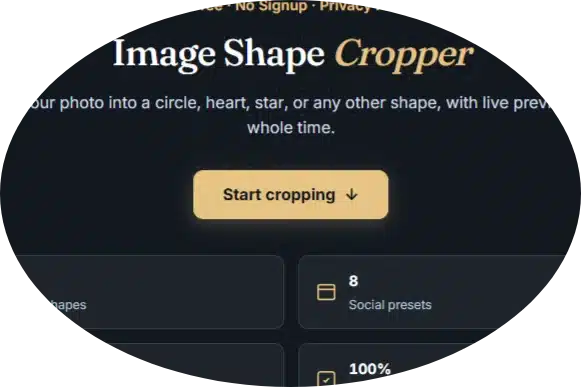
An illustration of a shape-mask workflow, not your live result or a guarantee of platform acceptance.
How it works
A path mask, applied in your browser
The tool clips your photo with the shape's outline and saves the result on your device.
What happens to your photo
Creative use cases
Use a silhouette with a specific purpose
| Use case | Recommended settings | What to check |
|---|---|---|
| A photo keepsake | Heart · PNG | The upper lobes and lower point must not cut a face or key detail. The tool does not add greetings or text. |
| WhatsApp or Instagram profile photo | Circle or Heart · profile preset | The app applies its own round crop and may flatten transparency. Keep the face centered; if transparent areas look wrong in the app, save as JPG. |
| A geometric image tile | Hexagon or another polygon · PNG | Use transparent output where the page color should show through. |
| A star-shaped product detail | Star · PNG or WebP | This is a shaped photo, not a complete sale badge; prices, text and borders need a separate design step. |
| A ring around a detail | Ring · PNG | Place useful content in the band. The center is removed on purpose; it is not a rendering failure. |
A different crop task
Decorative photo masks. More than a frame trim.
| What you want | Use | How it differs |
|---|---|---|
| A photo inside a heart, star, polygon or cut-away shape | Image Shape Cropper (this page) | Choose a silhouette, position the subject and keep the outside transparent. |
| A rectangular trim or a fixed-ratio rectangle | Rectangular Image Cropper | Set rectangular bounds and an aspect ratio. |
| A round portrait with a diameter control | Circle Image Cropper | Position a circle and choose transparent corners. |
Troubleshooting
Inspect the cutout before you download
The background inside is still there
The mask hides only pixels outside the shape, plus intentional holes. It does not find or remove a background.
- Move the region so less background falls inside the shape.
- Remove the background first with the Background Remover.
- Then add the result here and save as PNG.
A white box or filled center appears
JPG, BMP and PDF fill transparent areas with white.
- Choose PNG, or WebP when it is listed.
- Press Prepare shaped image again after changing the format.
- View the file in an app that shows transparency.
Part of the subject is missing
A star's inner notches, the ring's center and the crescent's cut-away can hide content even inside the selection box.
- Move or enlarge the selected region.
- Try a fuller shape, such as Circle or Ellipse.
- Use Inspect result to check the edges.
More padding than expected
An output size with different proportions centers the shape without stretching it.
- Choose Use selection size to avoid extra padding.
- Or pick a preset with matching proportions.
- Use Custom size to set exact dimensions.
Frequently asked questions
Shape-mask questions
How do I crop a photo into a heart or star?
Choose an image, select Heart or Star, and move or resize the selected source region until the subject sits inside the mask. Prepare the file and inspect it. PNG or WebP keeps the outside transparent; JPG, BMP and PDF fill it with white.
Which shapes can I choose?
The 16 built-in options are Rectangle, Circle, Triangle, Heart, Star, Pentagon, Hexagon, Octagon, Rhombus, Trapezoid, Cross, Arrow, Ring, Crescent, Ellipse and Semicircle. This tool does not accept your own SVG mask designs or let you draw a custom shape.
How is this different from the other cropper pages?
Image Shape Cropper focuses on decorative photo masks such as hearts, stars, polygons and cut-away silhouettes. The separate Image Cropper is simpler for rectangular regions and aspect ratios. Circle Image Cropper has a dedicated diameter workflow for round portraits and logos.
How do transparent holes and cut-away areas work?
The Ring mask has a transparent center, using an even-odd clipping rule. The Crescent has a cut-away side. These areas and the outside stay transparent in PNG and WebP. JPG, 24-bit BMP and this tool's PDF fill them with white.
Does a shaped image file stop being rectangular?
No. The saved file still has a rectangular pixel canvas. The mask hides pixels outside the chosen silhouette, and PNG and WebP keep those pixels transparent. A viewing app may show transparency on a white or colored background.
Does this remove the background inside the shape?
No. It keeps the source image inside the mask, including its existing background and transparency. It does not identify a person, remove a backdrop, add an outline, draw text or produce an editable vector cut line.
Which social media sizes can I choose?
The list includes 26 profile, cover, post, Story, Reel-cover, thumbnail and Pin sizes across Instagram, Facebook, YouTube, LinkedIn, X, Pinterest, TikTok and WhatsApp. Each choice states whether it is an official recommendation, minimum, supported-ratio canvas, guidance example or working canvas, with a link to the platform's guidance. You can also enter a custom size. A size alone does not guarantee that a platform accepts the upload.
Does a social media size change my selected shape?
No. A size preset changes the output width and height, while your chosen mask and source region stay the same. The shaped image fits inside that size without stretching, with centered padding when proportions differ. Enlarging the output does not recover missing detail.
Why is the rectangle ratio control disabled for other shapes?
Each decorative mask keeps the proportions of its built-in path, so it cannot be stretched along one axis. Select Rectangle to use Freeform, Current image ratio, 1:1, 3:2, 2:3, 4:3 or 16:9.
What happens when I rotate, flip or zoom?
Rotating and flipping change the image before masking and center the selected shape again, so recheck the subject placement afterwards. View zoom only magnifies the editor and does not change the region or a prepared file.
Which files and limits are supported?
Use one JPG/JPEG, PNG, WebP, BMP, GIF, self-contained SVG or the first page of a PDF. Files must be non-empty and at most 10 MB. The decoded image and the output are limited to 20 MP and 16,384 px per side, and a prepared file to 96 MB. On phones, very large outputs can fail; a smaller output size helps.
Are files uploaded, and what happens to animation or PDF text?
No. Your file is processed inside your browser and is not sent to our server. For PDF input, the browser downloads the pdf.js decoder from jsDelivr; your file is not part of that request, and page 1 is rendered at 108 DPI. GIFs give one still frame. SVG and PDF become pixels; animation, original metadata, editable vectors and PDF text are not kept. PDF output places one JPG image on a page at 96 pixels per inch.
Why did the prepared download disappear after an edit?
Changing the shape, source region, rotation, flip, output size, format or quality clears the prepared file, so an old result is not mistaken for the new settings. Prepare it again. Zoom, appearance, the expanded view and the download name do not change the prepared pixels.
Keep the photo. Save the shape.
Return to your workspace to position the subject, or browse the full tools directory.