Circle crop · Transparent PNG corners
Circle Image Cropper
A round frame for your subject.
Clear corners for your layout.
Move the circle over a face or logo, set its diameter and save a PNG with transparent corners for profile pictures, team pages and slides. The file itself stays square; JPG, BMP and PDF use white corners.
Add an image to make round
Drag and drop, paste, or choose one photo or logo.
JPG · PNG · WebP · GIF · BMP · SVG · HEIC · PDF page 1 · 10 MB
Checking available output formats…
Circle position and diameter
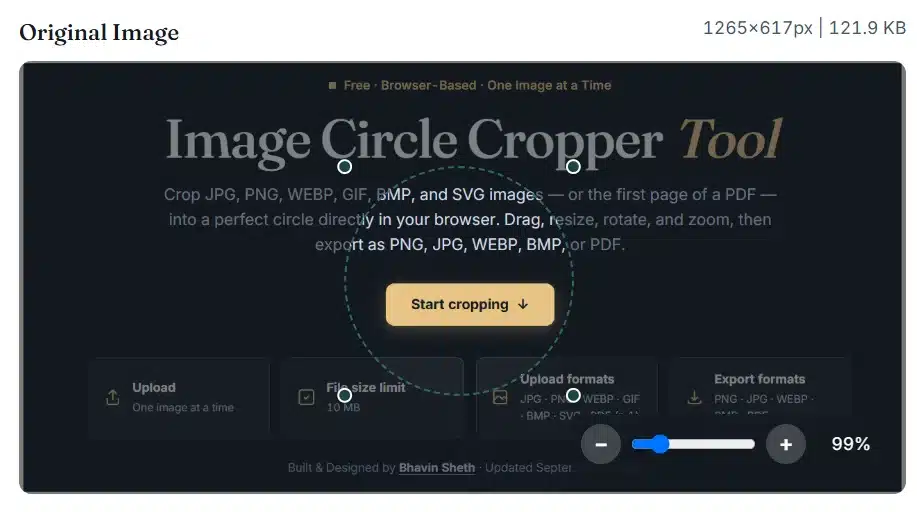
Drag inside the circle to move it; drag one of its four handles to change the diameter. With a keyboard, the arrow keys move or resize by 1 pixel and Shift uses 10 pixels. Set the diameter before X and Y, because a large circle has less room to move. The number fields are easier for small circles.
Rotating or flipping selects the largest centred circle again. View zoom changes only the editor, not the diameter.
Round image preview
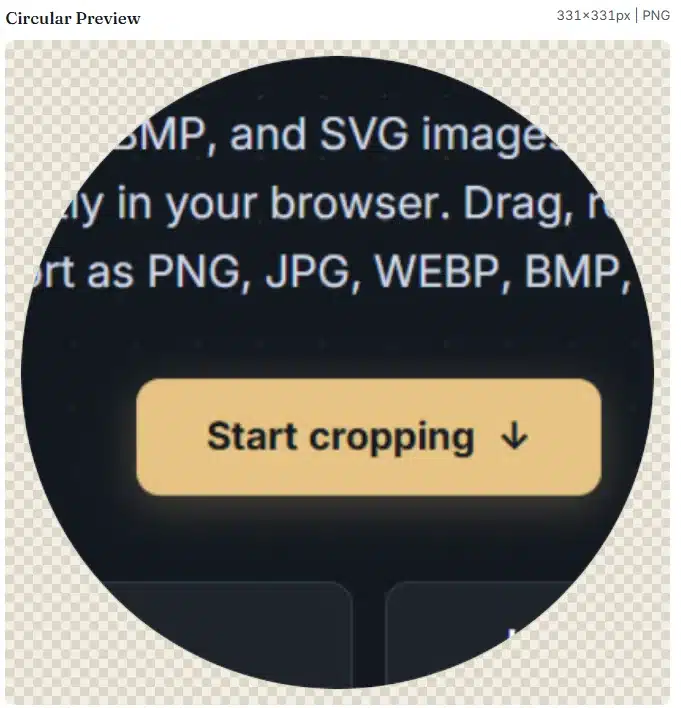
The checkerboard shows transparency; it is not saved in the file. The output is diameter × diameter pixels.
Save your circle image
Corner transparency
Round on the page. Square in the file.
A circle PNG is still a square pixel grid; only its outer corners are transparent. The format you choose decides what those corners become.
| Output | Outside the circle | Recommended use | When to choose it |
|---|---|---|---|
| PNG | Transparent | Default | A round photo or logo on a coloured slide, website or document that supports transparency. |
| WebP, when listed | Transparent | Smaller web files | A website or app that accepts WebP with transparency. |
| JPG / 24-bit BMP | White | Only if required | A destination that demands these formats, where white corners are acceptable. |
| White, on one page | Simple handoff | A one-page document; the circle is a picture, not an editable vector. |
Circle controls
One diameter. A deliberate position.
Place the subject
Drag inside the circle or type X and Y. They set the top-left of the circle's square bounds; the centre is X + diameter ÷ 2, Y + diameter ÷ 2.
Set the diameter
A larger diameter includes more of the photo; a smaller one frames a detail. The circle stays inside the image, and the saved file is diameter × diameter pixels.
Check the edge
Look at hair, shoulders, logo text and fine strokes near the round edge. A tight circle can cut them off even when the centre looks right.
Use the keyboard
Focus the circle or one of its four handles and use the arrow keys; Shift moves 10 pixels. The number fields are easier for very small circles.
Worked circular frames
Frame a portrait. Keep room at the edge.
Landscape photo to a centred circle
1200 × 800 → 800 × 800
The largest centred circle has diameter 800, X 200 and Y 0. In PNG, the corners outside the circle are transparent.
A tighter headshot
1000 × 1000 → 600 × 600
X 200, Y 150 and diameter 600 centre the circle at 500, 450. Check the top of the head and the shoulders before saving.
A logo on a coloured slide
PNG keeps the slide colour visible
The slide shows through the transparent corners. The logo's own background inside the circle stays; this is not background removal.
Example result
A circular boundary changes what remains
These images illustrate circular framing. They are not your live result or a measured benchmark; the workspace preview and the PNG you save show the real transparency.
How it works
A circular clip, applied in your browser
The browser draws only the pixels inside the circle onto a square canvas of the same diameter, then saves it on your device.
What happens to your image
Check before you save
A round picture still needs a final check
| Use | Recommended settings | What to check |
|---|---|---|
| A WhatsApp, Instagram or LinkedIn profile picture | Centre the face with room above the head · PNG | Many apps apply their own round mask to a square upload, so a circle file is optional there. Check how the app displays it. |
| A team photo on a website | Same diameter for every person · PNG or WebP | Check the circle at its real display size; view zoom does not add resolution. Use the Image Resizer to match sizes afterwards. |
| A round logo or badge | Leave space around lettering · PNG | This tool does not add a border, cut lines, print bleed or a vector circle. |
| A circular photo in slides or a document | PNG on a coloured background | Some viewers show transparency as white or a checkerboard; place the PNG on the slide to judge it. |
A different crop task
Need a rectangle or another shape?
| Your task | Use this tool | What you control |
|---|---|---|
| Round portrait, circular graphic or logo | Circle Image Cropper (this page) | Circle position, diameter and transparent corners |
| Trim a rectangle or crop to 1:1, 4:5 or 16:9 | Image Cropper | X, Y, width, height and aspect ratio |
| Heart, star, hexagon or another mask | Image Shape Cropper | Decorative masks and social media sizes |
| Change the pixel size of a finished image | Image Resizer | Width and height in pixels or percent |
Troubleshooting
Why the circle looks different after saving
I see square white corners
The file may be JPG, BMP or PDF, or the viewer may show transparency as white.
- Choose PNG, then press Crop circle again.
- View the file on a coloured background.
- Renaming a JPG to .png does not add transparency.
The background inside is still there
The circle hides only the area outside it; it does not detect a person or remove scenery.
- Tighten the circle around the subject.
- Cut out the person first with the Background Remover.
- Then crop the result here as PNG.
The face or logo is clipped
A round edge cuts corners that a square crop would keep.
- Increase the diameter or move the circle.
- After rotating, check the placement again.
- Use Inspect result to look at the edge.
The image is smaller than expected
The diameter selects source pixels; it is not a separate output size.
- Use a larger diameter if the photo allows it.
- Resize afterwards with the Image Resizer.
- Enlarging adds pixels, not missing detail.
Frequently asked questions
Circular image questions
How do I crop a picture into a circle?
Choose one image, move the circle over the subject and set its diameter. Press Crop circle, inspect the result and download it. The circle always stays inside the image, and its width and height are always equal.
How do I get a round PNG with transparent corners?
Keep PNG selected before cropping. Pixels outside the circle are transparent; the checkerboard in the preview only shows transparency and is not saved. WebP, when listed, can also keep transparency. Transparent areas inside the circle stay transparent.
Why does my downloaded image still have square dimensions?
Image files use a rectangular pixel canvas. A 400-pixel circle is saved on a 400 × 400 canvas. In PNG and WebP the pixels outside the circle are transparent, so the image looks round on any background that supports transparency.
Why are there white corners in JPG, BMP or PDF?
Those formats are filled with white by this tool, so the round photo sits inside a square white canvas. Choose PNG or WebP for transparent corners; changing only the file extension does not create transparency.
Does this remove the background behind a person?
No. It hides only the area outside the circle. It does not detect a person or remove the background inside the circle. Use a background remover first if you need that, then crop the result here.
Can I make an oval, a rectangle or another shape?
No. This page makes circles only, controlled by one diameter. Use the Image Cropper for rectangles and fixed ratios, or the Image Shape Cropper for hearts, stars and other masks.
What does the circle diameter control?
The diameter is the width and height of the selected area in image pixels. A diameter of 300 saves a 300 × 300 file containing the circle. It chooses how much of the photo is kept; it does not enlarge or resize the output separately.
What happens when I zoom, rotate or flip?
View zoom changes only the editor and keeps the circle where it is. Rotating or flipping changes the image first, then selects the largest centred circle again, so check its position. Reset orientation restores the original orientation and centred circle.
Which photos and file sizes can I use?
Edit one JPG/JPEG, PNG, WebP, BMP, GIF, HEIC/HEIF, self-contained SVG or PDF page 1 at a time. Each file must be non-empty and no larger than 10 MB. The opened image and the circle are limited to 20 MP and 16,384 pixels per side, and the saved file to 96 MB.
Is my photo uploaded, and is animation kept?
No, your photo is cropped in your browser and is not sent to our server. A PDF, or a HEIC photo the browser cannot open itself, downloads decoder code from jsDelivr; that request does not include your image. A GIF gives its first frame, SVG and PDF become pixels, and metadata is not kept.
Can I use this for a profile picture or a round logo?
Yes, but check the destination's size and format rules. Many apps apply their own round mask to a square upload, and some add padding. Leave room around the subject and inspect the saved file; this tool does not add a border or guarantee acceptance by a platform.
Why did my circle download disappear?
Moving or resizing the circle, rotating, flipping, or changing the format or quality clears the earlier file so an outdated result is not saved by mistake. Press Crop circle again. Zoom, appearance, the expanded view and renaming do not change the circle.
Ready to crop into a circle?
Return to your circle, or browse the full tools directory.