Free · No Signup · Privacy First
Image Border Adder
Add a custom-colored border and real-time filters to your photo, with a live preview the whole time.
Style your photo and add a border
Upload up to 5 images (max 10 MB each) to begin.
1. Upload Images
Drag & drop images here
or click anywhere in this box to browse
Supports: JPG, PNG, WEBP, BMP, GIF, SVG · Up to 5 images, 10 MB each
Processing Statistics
Settings guide
What each control actually does
| Setting | What it does | Recommended use | Best for |
|---|---|---|---|
| Filters (Brightness, Contrast, Sepia, Grayscale, Invert) | Applied through the browser's own built-in canvas filter, not per-pixel math like this site's dedicated Brightness/Contrast/Grayscale tools. 100 is "unchanged" for Brightness/Contrast; 0 is "unchanged" for Sepia/Grayscale/Invert. | Adjust before adding a border | Quick stylistic looks without leaving this tool. |
| Border Position | Inside draws the border directly over your image's own outer edge — no extra canvas space is added. Center straddles the edge, growing the canvas by half the border width per side. Outside pads fully outward, growing the canvas by the full width per enabled side. | Inside covers content | Outside/Center for a true frame; Inside only if covering edge pixels is intended. |
| Border Edges | Toggle the border on or off independently for each of the four sides. | Uneven framing | A border on only one or two sides, e.g. a bottom accent line. |
| Border Color | Set via a color picker or a paired text field. With Outside selected, an active filter (especially Invert, Grayscale, or Sepia) will visibly shift this color away from what you picked — Inside and Center are unaffected. | Check with filters active | Confirming the true rendered color before downloading. |
| Border Width / Radius | Width in pixels; Radius rounds all four corners of the entire canvas, including the border. Setting Radius to roughly half the image's shortest side produces a circular result. | Radius ≈ half width for a circle | Rounded frames or fully circular crops. |
| Output Format / Quality | PNG, JPG, or WEBP; defaults to PNG so rounded corners render with real transparency. Choosing JPG with a border radius set triggers a warning when you click Download. | PNG for rounded corners | Keeping clean, transparent corners intact. |
| Reset | Rebuilds that image's entire control panel back to its defaults — every filter, border, and format setting, not just one value. | Full reset, not partial | Starting completely over on one image. |
| Download | Each image is downloaded individually — there's no "Download All" button in this tool. | One at a time | Finishing and saving each image as you go. |
Output format guidance
Choosing an export format
Rounded corners genuinely need transparency to look clean, and this tool's own default reflects that — but the choice matters even more once a border radius is involved.
| Format | Best for | Quality control | Notes |
|---|---|---|---|
| PNG | Rounded corners, transparency, graphics | No slider | The default format here, specifically because it renders clipped-away corners as genuinely transparent. |
| JPG | Photos with square corners, smaller files | Quality slider (10–100) | With a border radius set, the clipped corners typically render black rather than transparent — this tool warns you at download time if you pick JPG here. |
| WEBP | Smaller, modern web-ready files | Quality slider (10–100) | Genuinely transparent, like PNG — a good alternative when file size matters. |
Example result
Before and after
Actual results depend on your chosen filters, border settings, and source image — this is one example, not a guaranteed result.
Original Before styling
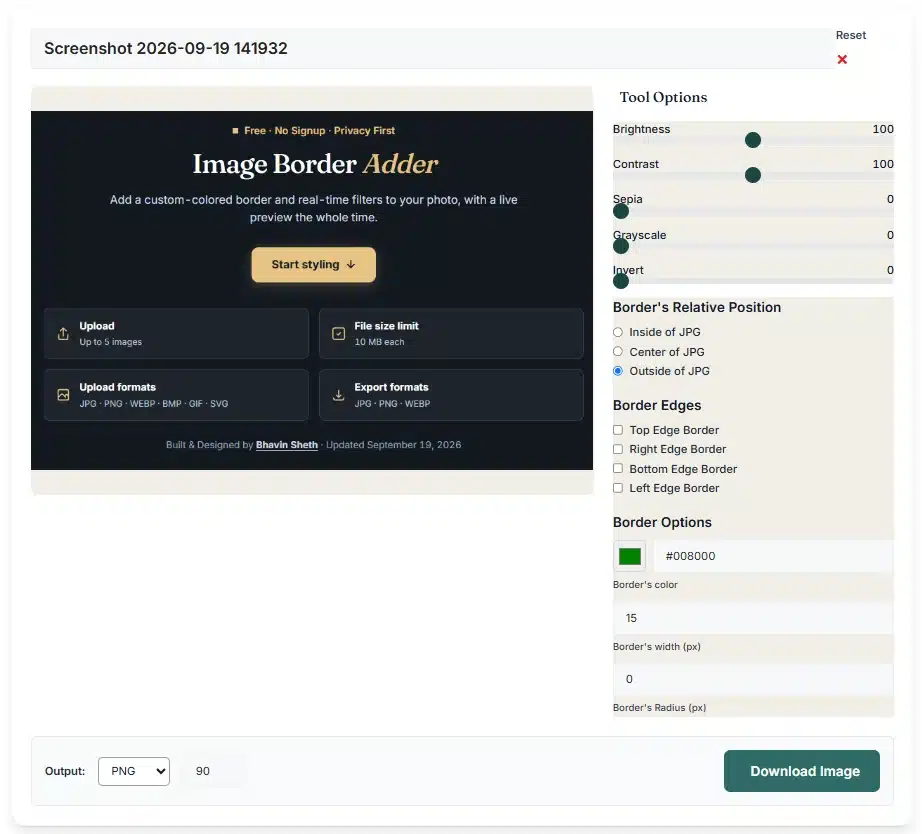
The source image, unfiltered and unframed.
Styled After styling
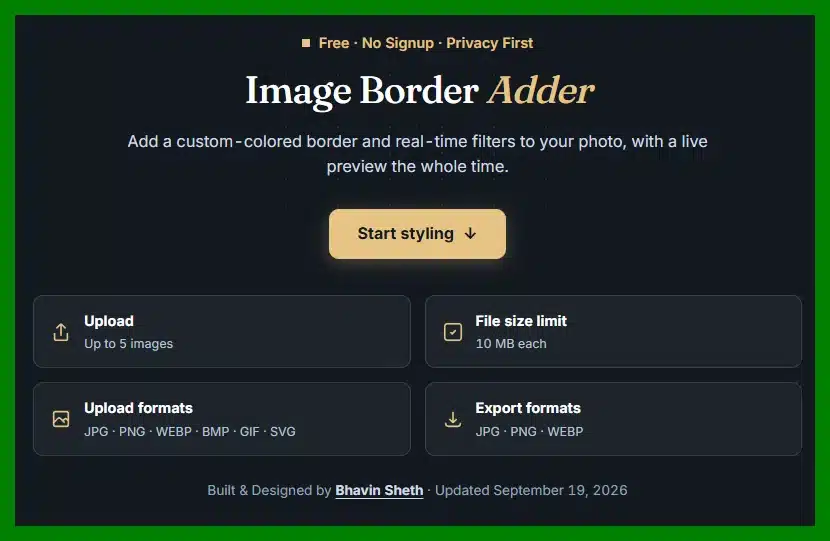
The same image with filters and an Outside border applied.
Browser technology
How filters and borders work without a server
This tool composites everything on one canvas in a specific order — filter, then border fill, then image, then unfiltered border edges — which is exactly why border color and filters interact the way they do. Nothing is uploaded as part of this workflow.
What happens when you adjust a setting
Honest by design
What this tool does — and doesn't
Stated plainly, before you run into it, rather than only after something looks unexpected.
The filters
The "Inside" border
Border color accuracy
Rounded corners
Downloading multiple images
Session handling
Common use cases
What people actually style for
| Problem / use case | Recommended settings | Result, benefits & where to use |
|---|---|---|
| Cohesive social media feed Posts need a consistent, branded look. | Same filter values on every photoMatching border color | A visually unified set of posts. |
| Clean product photo framing Listing photos need a structured, professional look. | Outside borderSmall radius | A tidy, uniform frame around each product shot. |
| Matching an article's mood A blog photo needs to feel brighter or moodier. | Brightness / Contrast sliders | Tone that fits the surrounding content. |
| Circular profile-style image A square photo needs a circular crop look. | Radius ≈ half the width | A rounded, avatar-style presentation. |
| Brightening a dim property photo A room photo looks dark or cramped. | Brightness 110–140 | A clearer, more inviting listing photo. |
| Report or presentation graphics A screenshot needs a clean visual boundary. | Thin Outside border | A defined edge that separates the image from the page. |
Troubleshooting
Common issues & quick fixes
My border came out a different color than I picked
With Border Position set to Outside, any active filter — especially Invert, Grayscale, or Sepia — is applied to the border fill itself, shifting its rendered color.
- Switch to Center or Inside if the exact color matters more than the Outside look
- Or set filters back to their default values (Brightness/Contrast 100, others 0) before adding the border
"Inside" border is covering part of my photo
The Inside option doesn't add canvas space — it paints directly over your image's own outer edge pixels.
- Use Center or Outside if you want the border to add a frame instead
- Inside is intended for cases where covering the very edge is acceptable
Rounded corners show black instead of transparent
JPG has no transparency support, so a border radius clips the corners down to a hard rectangle with black showing through, rather than a clean rounded edge.
- Switch to PNG or WEBP — both are genuinely transparent in the clipped corner areas
- This tool defaults to PNG for exactly this reason
There's no "Download All" button
This tool doesn't include a batch-download feature — each image needs its own Download click.
- Download each finished image individually from its own card
- This is expected behavior, not a missing feature
Typed a color code and nothing changed
An invalid or malformed color value is silently ignored by the canvas, so the previous valid border color stays in place with no error shown.
- Use the color picker swatch instead of typing, or double-check the hex code format
- A valid 6-digit hex code (like #3366CC) always works
An uploaded file has no preview
Upload checks for supported standard formats — unsupported variants, corrupt files, or non-decodable formats will report an error during reading.
- Convert to JPG, PNG, WEBP, or SVG first, then upload here
- Stick to JPG, PNG, WEBP, BMP, GIF, or SVG for reliable results
Frequently asked questions
Filters and borders questions
Is my data safe when using this tool?
Image processing happens directly in your browser, and this tool does not upload your selected images to our server as part of the editing workflow.
Do the filters reduce image quality?
The processing itself does not degrade original dimensions. The final quality is determined by the output settings you choose. For photographs, a JPG quality of 90 is recommended. For graphics, or when you require lossless detail, PNG is a reliable choice.
How does the "Outside" border option work?
The Outside option increases the total dimensions of your image. For example, if you add a 15px border to a 1000x800 image, the new file will measure 1030x830 pixels. The tool creates a new canvas, fills it with your chosen border color, and places your original image in the center, framing photos without cropping any content.
Can I edit multiple images at once?
Yes. You can upload up to 5 images, configure unique filters and border rules for each image on its respective control panel, and download them individually when you are satisfied with the configurations.
Can I reset the effects on an image?
Each editor card contains a Reset button that will instantly clear applied filters and borders from that specific image, reverting it to its initial state.
What image formats are supported?
We support major image formats including JPG, JPEG, PNG, WEBP, BMP, GIF (non-animated), and SVG. You can process these formats and export your files as JPG, PNG, or WEBP.
Ready to frame your photo?
Upload up to 5 images and style each one with filters and a border.
Start styling ↓