PDF Storyboard Generator with OCR — turn PDF pages into a visual panel layout
Pick a layout, let OCR pull the text off each page for captions, adjust theme and spacing, then export the whole thing as a PDF, a single image, or individual page images.
Create your storyboard
Upload a PDF, choose a layout and captions, then generate the panel board.
Drop your PDF here
or choose a PDF from your device
A storyboard is just pages, reordered for the eye
Reading a document top to bottom and scanning its flow at a glance are two different tasks — a storyboard is built for the second one.
From pages to a visual narrative
A shot list for a video shoot, a slide deck reviewed for pacing, a dense report someone needs a visual overview of before diving in — each of these benefits from seeing every page as a small panel laid out together, rather than scrolling through them one at a time.
This tool renders each page to a thumbnail with pdf.js, arranges them into the layout you pick, and optionally runs Tesseract.js over each page to pull out a caption automatically. The result is a single visual board you can style, export as a PDF or PNG, or break back out into individual page images.
Everything you can adjust
4 layout options
Grid, Single Column, Two Column, and Film Strip — each suited to a different kind of review.
OCR auto-captions
Automatically extracts text from each page with Tesseract.js for editable captions.
Styling
Adjust thumbnail size, panel spacing, caption font, and light or dark theme.
Multiple exports
Download the finished board as a PDF, a single PNG, or every page as its own image file.
Password support
Enter a password in the upload area to open and process an encrypted PDF.
Layout is the decision, everything else is polish
Pick the layout that matches the review you're actually doing, then adjust the rest.
Upload your PDF
Drag it onto the upload area, or click Select PDF. If it's password-protected, enter the password in the field provided.
Pick a layout and captions
Set up the board:
Generate
Click Generate Storyboard. The board renders with your chosen layout, captions, and styling.
Export
Download the full board as a PDF or PNG, or grab every page as its own image file.
From a stack of pages to a readable sequence
The same content, arranged so its flow is visible at a glance.
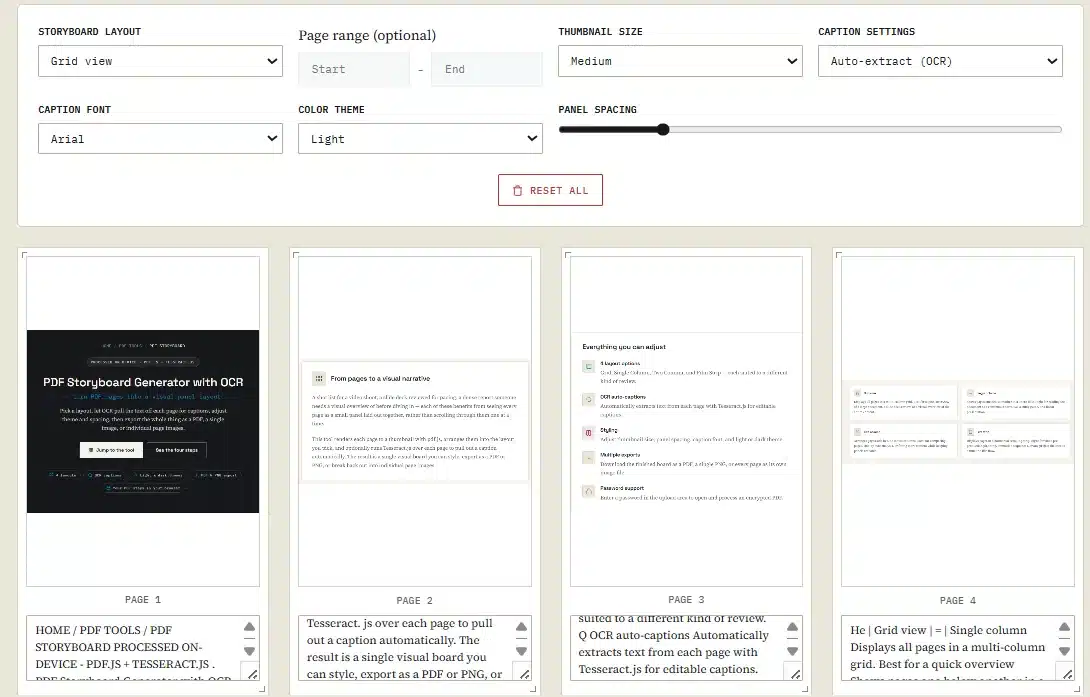
A multi-page PDF is harder to scan as one visual sequence.
A grid-based board with page thumbnails and optional captions for easier visual review.
Documents that need to be seen in sequence, not read top to bottom
Cases where the flow across pages matters more than any single page.
| Use case | What to visualize | Typical user |
|---|---|---|
| Film & video production | Convert scripts and shot lists into a visual sequence with panel notes. | Filmmakers & directors |
| Presentations | Get a visual overview of a slide deck to check flow and consistency. | Business professionals |
| Education | Break textbooks and lecture notes into a visual study guide. | Students & educators |
| Legal documents | Create a visual overview of contracts and case files for document review. | Lawyers & paralegals |
| Animation | Plan animation sequences and timing with a panel-based layout. | Animators & illustrators |
| Marketing | Review campaign materials and ad sequences for narrative flow. | Marketers & creatives |
| Research papers | Analyze the structure of academic papers at a glance. | Researchers & academics |
| Comic scripts | Plan comic layouts and panel sequences from a script PDF. | Comic artists & writers |
Four layouts, four different jobs
Each layout is built for a different kind of review — here's when to reach for each.
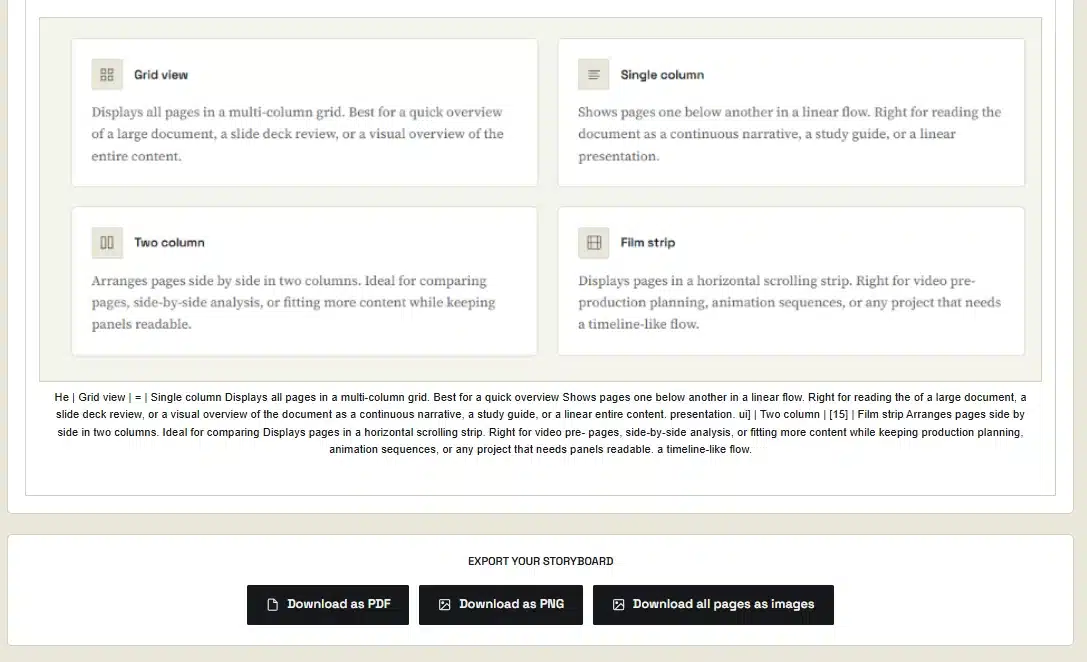
Grid view
Displays all pages in a multi-column grid. Best for a quick overview of a large document, a slide deck review, or a visual overview of the entire content.
Single column
Shows pages one below another in a linear flow. Right for reading the document as a continuous narrative, a study guide, or a linear presentation.
Two column
Arranges pages side by side in two columns. Ideal for comparing pages, side-by-side analysis, or fitting more content while keeping panels readable.
Film strip
Displays pages in a horizontal scrolling strip. Right for video pre-production planning, animation sequences, or any project that needs a timeline-like flow.
When the storyboard doesn't come out right
What's actually happening, and the fastest way through it.
PDF won't load
The file is password-protected or corrupted.
Enter the correct password in the password field, or re-download the source PDF.
OCR produces garbled text
Low-quality scan or very small fonts.
Use Manual Captions instead, or edit the OCR results directly in the caption boxes.
Storyboard is too wide or too long
Too many pages, or thumbnail size set too large.
Use a page range to limit pages, or reduce thumbnail size to Small.
OCR is very slow
A large document with many pages takes longer to process one by one.
Use a page range to OCR only the pages you need, or switch to Manual Captions.
Password error
Wrong password, or the file requires one and none was entered.
Enter the correct password in the password field before uploading.
Generate button does nothing
No PDF has been uploaded yet.
Upload a PDF first — the Generate button appears only once pages have loaded.
PDF won't load
Why: Password-protected or corrupted.
Fix: Enter password, or re-download.
OCR garbled text
Why: Low-quality scan.
Fix: Use Manual Captions or edit results.
Board too wide or long
Why: Too many pages or large size.
Fix: Use a page range or smaller size.
OCR very slow
Why: Large document, many pages.
Fix: Use a page range or Manual Captions.
Password error
Why: Wrong or missing password.
Fix: Enter the correct password.
Generate does nothing
Why: No PDF uploaded.
Fix: Upload a PDF first.
Building a storyboard without redoing the layout
A working order that avoids the most common redo.
Match layout to your goal
Grid for overview, Single Column for linear flow, Film Strip for video planning — the right layout makes the board instantly useful.
Use OCR to save time
Let OCR auto-extract captions from each page, then edit the results — much faster than typing every caption by hand.
Choose the right thumbnail size
Small for an overview of many pages, Large for detailed review — Medium is a solid default for most cases.
Use a page range for large PDFs
For documents with hundreds of pages, focus on the section that matters instead of processing everything at once.
Preview before exporting
Always check the storyboard preview to confirm layout, captions, and theme look right before downloading.
Export individual images for flexibility
Use Download All Pages as Images to get each panel as its own PNG — useful for importing into video editors or slide software.
PDF storyboard questions
If something's not covered here, the troubleshooting section above likely has it.
Is it safe to upload my PDF files?
Yes. The entire storyboard generation and OCR process happens in your browser — your PDF stays in your browser and is never uploaded to a server.
How accurate is the Auto-Extract (OCR) feature?
It uses Tesseract.js and generally works best with clear, typed text. Accuracy can drop with handwriting, very small fonts, or low-quality scans, so review and edit the generated captions before exporting.
How does Download All Pages as Images work?
It triggers a separate download for each page of your original PDF within your chosen page range, rendered as a PNG, one after another — no zip file, which is useful for importing individual scenes into other software.
Can I edit the storyboard after it's generated?
The preview is for visualization. To make changes, adjust the settings in the control panel — layout, captions, theme, spacing — and click Generate Storyboard again to see the updated version before downloading.
The write-up on how this was built
Because layout, OCR, and export all run client-side, I wrote up the implementation — how each layout mode maps to a CSS grid or flex configuration, and how html2canvas and jsPDF combine to turn the live board into a downloadable file.
How to Build a Browser-Based PDF Storyboard Generator Using JavaScript
Covers layout systems for visual boards, OCR captioning with Tesseract.js, and client-side export with html2canvas and jsPDF.