1. Install
- In WordPress open Plugins > Add New > Upload Plugin.
- Choose
aiot-site-audit-1.1.1.zip(the free plugin), press Install Now, then Activate. - Do the same with
aiot-site-audit-pro-1.3.0.zip(the Pro add-on). The free plugin must stay active. - Open Site Audit > License, paste your license key and press Activate.
Needs WordPress 6.2 or newer and PHP 7.4 or newer. The Word download needs the PHP zip extension, which almost every host has.
Free, Pro and your license key
| Feature | Free | Pro |
|---|---|---|
| Full audit of this website, all checks, score for every page | Yes | Yes |
| Audit of a single page, Re-check | Yes | Yes |
| Report in English, print / PDF | Yes | Yes |
| Report in 7 more languages (Hindi, Gujarati, Spanish, Portuguese, French, German, Indonesian) | - | Yes |
| Domain expiry, domain age and spam blacklist checks | - | Yes |
| Insights: website technology, site structure, fix files, Search Console import, topic clusters | - | Yes |
| AI crawler rules, llms.txt, internal link ideas | Yes | Yes |
| Competitor comparison | Yes | |
| AI Insights and "Fix with AI" (your own Gemini key) | Yes | |
| Word and CSV downloads, your logo and name, share link | Yes | |
| Audit of another website | Yes | |
| Automatic audits, e-mail reports, alerts | Yes |
Your license key
- The key is in your Gumroad receipt e-mail and in your Gumroad library.
- A 1 site key works on 2 sites: your live site and one staging or test site.
- An Unlimited sites key works on any number of sites.
- To move a 1 site key to a new website, write to us and we reset it.
- To check the key, your site sends the key to Gumroad when you activate it and once a week. Nothing else is sent. If Gumroad cannot be reached, Pro keeps working.
- If a purchase is refunded, the Pro features switch off. Your site, your audits and the free plugin keep working.
- Updates: when a new version is out you get an e-mail from Gumroad. Download the new zip and upload it in Plugins > Add New > Upload Plugin; WordPress offers to replace the old version.
2. Your first audit
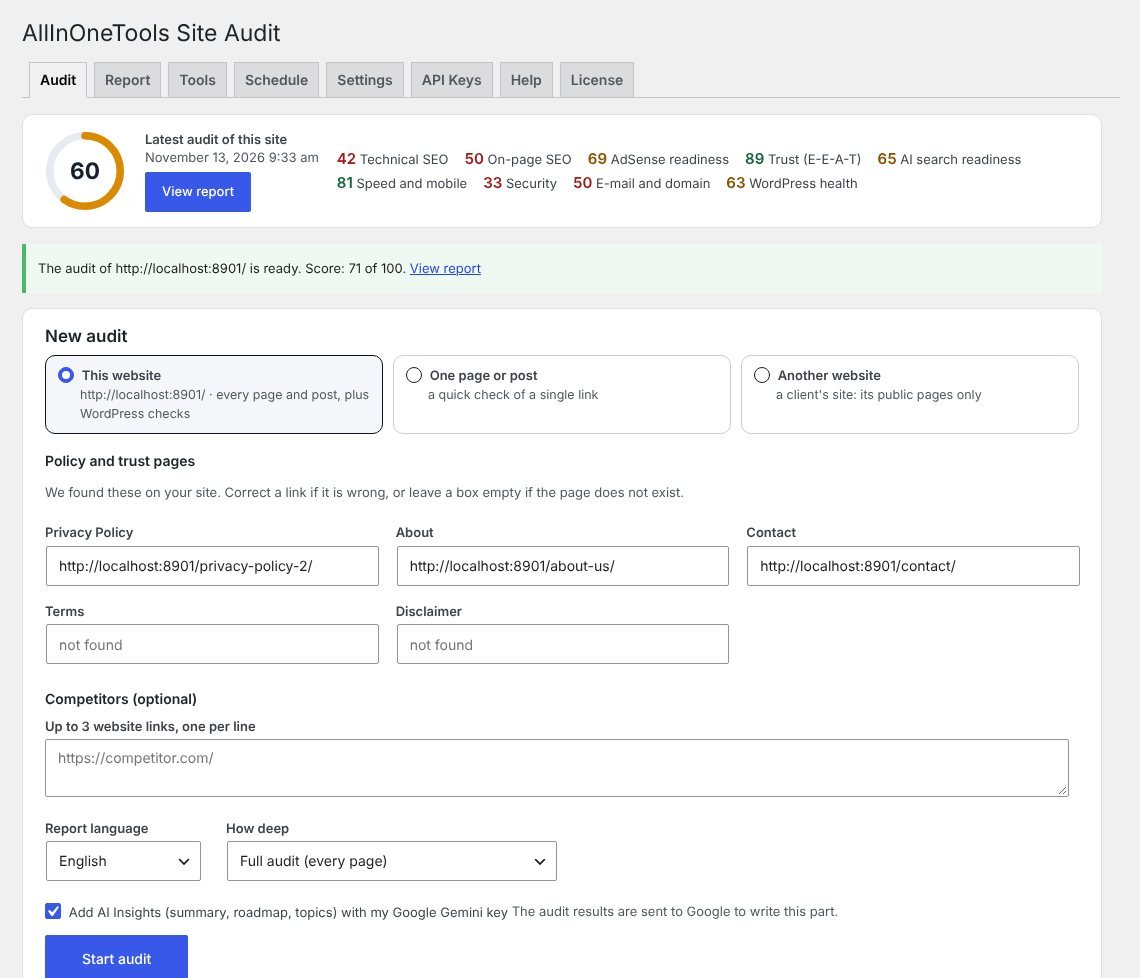
- Choose what to audit: This website (every page and post, plus checks only WordPress can do), One page or post, or Another website (Pro; a client's site: its public pages only).
- Check the policy and trust pages. The plugin finds your Privacy Policy, About, Contact, Terms and Disclaimer pages by itself. Correct a link if it is wrong; leave a box empty if the page does not exist.
- For Another website, choose how many pages to read: 40, 100, 200 or 500. The plugin takes them from that site's sitemap. With 40 you get a quick sample; the report then says "A sample of about N pages in the sitemap". To check every page, with the checks only WordPress can do, install the plugin on that website and choose This website.
- Optional: add up to 3 competitor links.
- Pick the report language.
- Press Start audit.
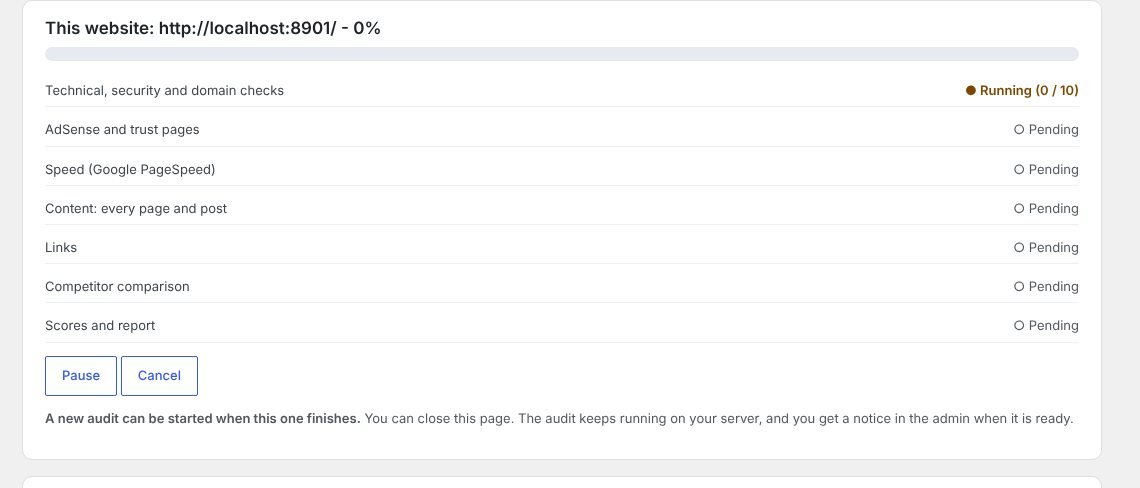
While an audit runs, the Audit tab shows its progress and which website it is for; the form for a new audit comes back when it finishes. You can close the page. The audit keeps running on your server. When it finishes you see a notice in the admin, and you get an e-mail if that is switched on in Settings. Use Pause, Resume or Cancel at any time.
3. Reading the report
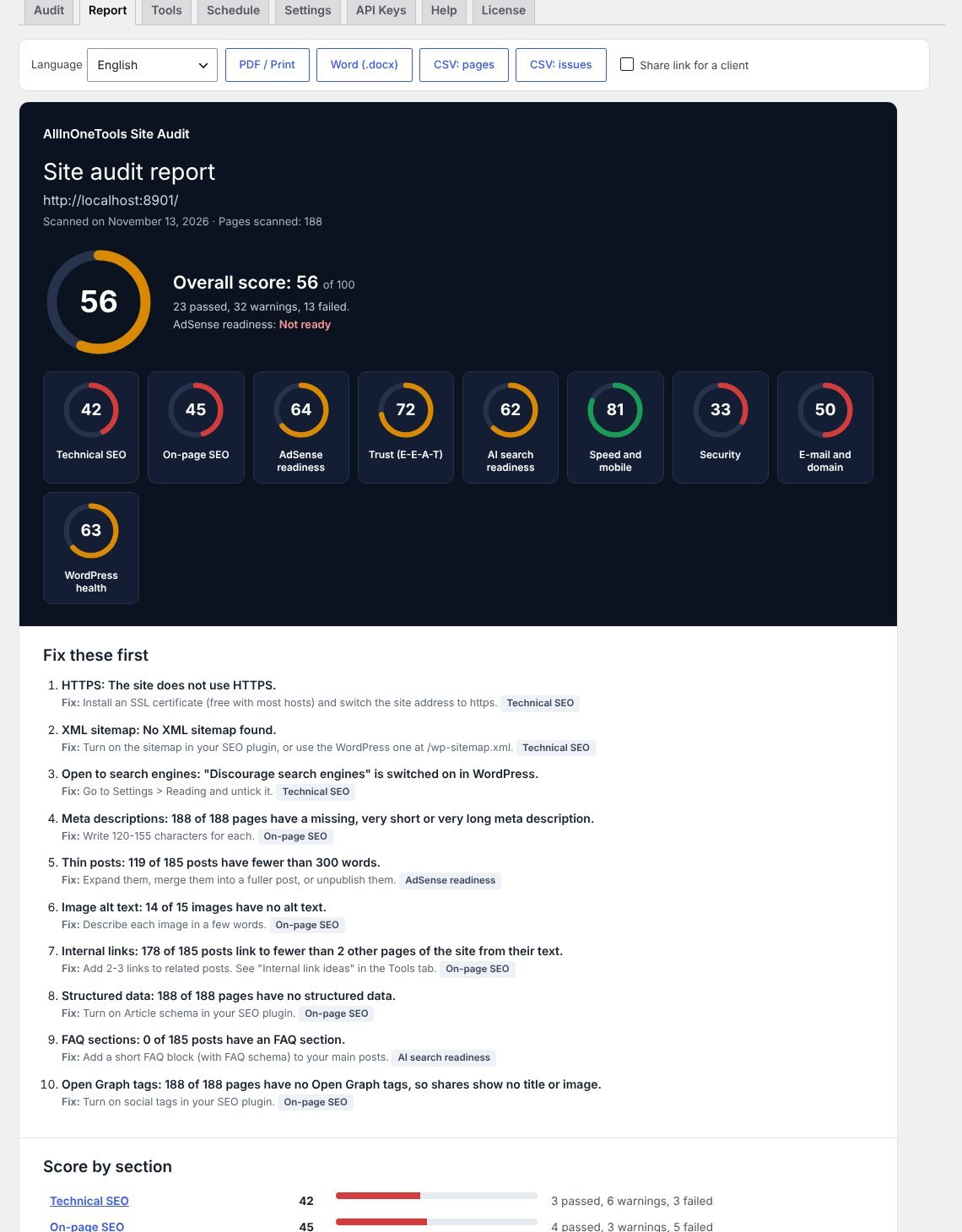
- Overall score and a score for each section. Green is 80 or more, amber 55 to 79, red below 55.
- AdSense readiness: Ready, Almost ready or Not ready. It is a checklist of what reviewers usually look for. Approval is Google's decision.
- Fix these first: the checks that matter most, in order, each with its fix.
- Each section lists its checks as Pass, Warning, Fail, Info or Not checked (with the reason). Open "Show the list" to see the pages, with an Edit link for each.
- Content: every page and post lists each page with its words, score and issues. Re-check scans one post again after you fix it.
- Compared with the last audit appears from the second audit on.
The score also shows in the Posts list, in a box in the post editor, and on the Dashboard.
4. Downloads, languages and your logo
Language and PDF / Print are in the free plugin. Word, CSV, the share link and your logo are Pro.
- Language: change it at the top of the report. The whole report, and every download, switches language. Languages: English, Hindi, Gujarati, Spanish, Portuguese, French, German, Indonesian. Technical names (robots.txt, sitemap, schema) stay in English, and your own page titles are not translated.
- Word (.docx): a file you can edit before you send it to a client.
- PDF / Print: opens a print-ready page and your browser's print window. Choose "Save as PDF" and switch on "Background graphics".
- CSV: pages (every page with its numbers) and CSV: issues (every check and every affected page).
- Share link for a client: tick the box to get a private link that shows the report without logging in. Untick it to switch the link off.
- Your logo and name: in Settings, add your company name, logo and "Prepared by" line. They replace the plugin's name on the screen, the PDF and the Word file.
5. Competitor comparison (Pro)
Add up to 3 competitor links when you start an audit. The plugin reads each competitor's home page, robots.txt, sitemap and a small sample of pages (15 by default, slowly, and only if their robots.txt allows it). The report shows a side-by-side table and three lists: They have it, you do not, You have it, they do not, and Both have it, theirs is stronger.
"Topics they cover and you do not" is an estimate made from page titles. With a Gemini key, AI writes this list instead.
Not included: competitor traffic, rankings and backlinks. That data is not public. Competitors do not get an overall score, because only a sample of their pages is read.
6. AI help with your Gemini key (Pro)
AI is optional. Every check and score comes from the plugin's own code. AI only explains and writes text, and everything it writes is marked "AI suggestion".
Get the free key
- Open aistudio.google.com/apikey and sign in with a Google account.
- Press Create API key and choose a project.
- Copy the key into Site Audit > API Keys and press Save.
- Press Test key. The Model box then offers the models your key can use. A "flash" model is fast and has the largest free limit.
Google sets daily limits for free keys and changes them from time to time; the API Keys tab links to the current limits.
What it adds
- AI Insights in the report: a plain-language summary, priorities, a 90-day roadmap, a paragraph for your Privacy Policy, and topics to write next.
- Fix with AI on the checks for meta descriptions, titles, image alt text and FAQ sections. You get suggestions you can edit, then press Apply.
- AI help on each post: the same four, plus a better heading structure and "what this post answers and what is missing".
- Content brief in the Tools tab.
Apply and Undo
Nothing is saved until you press Apply. Descriptions and titles are saved into Rank Math, Yoast SEO, SEOPress or The SEO Framework when one is active; otherwise the plugin stores them and prints the meta description itself. Alt text is written into the images in the post. An FAQ is added to the end of the post, visible to readers, with FAQ schema. Every change has an Undo, also later under Tools > Changes made with "Apply".
When you use AI, the audit results and the post text are sent to Google.
Error register, plan and AI visibility (Pro)
New in Pro 1.2. All of it appears in the report on the screen, the shared page, Print / PDF and the Word file.
- Section bar and Back to top. A bar under the report header jumps to any section; the section you are in stays visible while you scroll. "Top" brings you back.
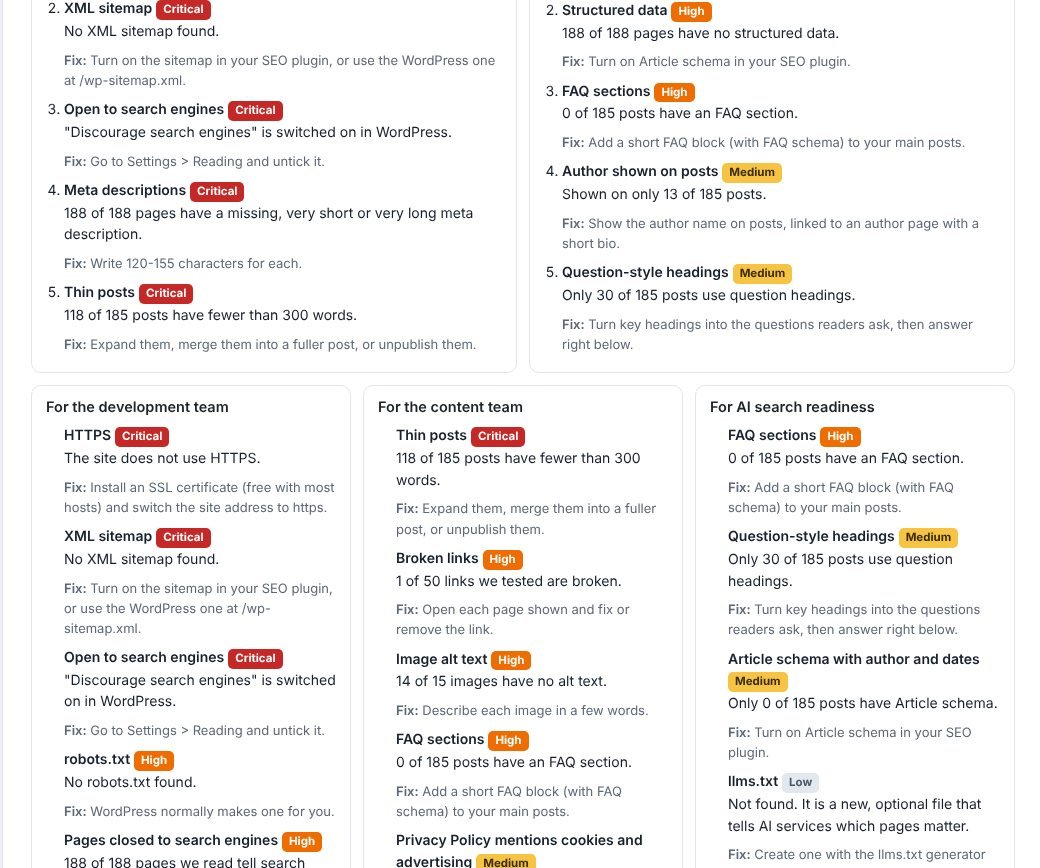
- Error register. Every problem with a severity (Critical, High, Medium, Low), the affected page, the fix and a priority (P1 to P4). Click a severity box to filter, or search the list. Severity comes from the check's weight: a failed important check is Critical, a warning on a small check is Low.
- Strategic summary. The first thing to do, the five biggest problems and opportunities, the jobs for the development team, the content team and AI search readiness, the pages to improve first and the pages to create.
- Implementation plan. Five phases (days 1-7, 8-15, 16-30, 31-60, 61-90), each task with a number, priority, effort, team and how to measure it. It replaces the 90-day roadmap unless AI Insights wrote one.
- 15 more checks. X-Robots-Tag and noindex on the pages read, canonical on every page, temporary redirects (302/307), soft 404 pages, server errors, end slash, pagination, image file names, breadcrumbs, repeated schema, lazy loading, font loading, heavy images (over 200 KB), files loaded from other domains, and posts not updated for 18 months. They read up to 30 pages again and up to 25 images; this adds about a minute to an audit.
- Hide a check. Press Hide in the error register when a check does not apply to your site. It leaves the score and every report. The list at the end of the report has Bring back.
- What was not tested. Each report lists what the plugin does not measure (backlinks, rankings, Search Console data, AI answers, analytics) and the checks that could not run.
- AI visibility tracker. Press Open the AI visibility tracker. The plugin suggests questions from your site's name and headings. Ask each one in ChatGPT, Perplexity, Gemini, Copilot and Google, choose what you saw (site cited, brand named, only on another site, not shown) and press Save. The table appears in the report. The plugin never asks the AI services and never guesses.
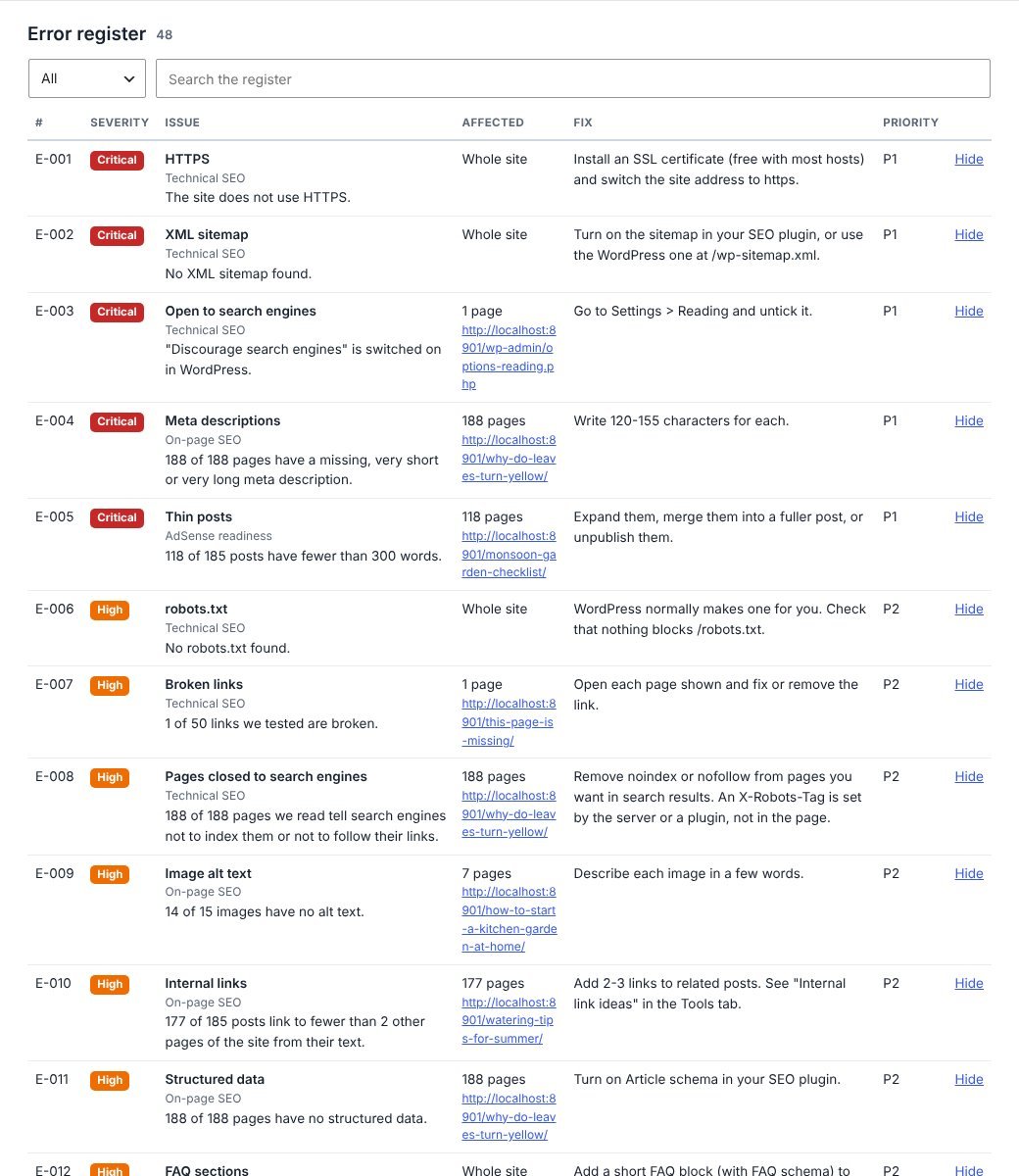
The new labels are translated in all 8 report languages. The messages of the 15 new checks are in English for now.
Insights: technology, structure, fix files, Search Console, topic clusters (Pro)
New in Pro 1.3. Open Site Audit › Insights, choose an audit at the top, then one of the five buttons. Each screen has a "How it works, and its limits" box.
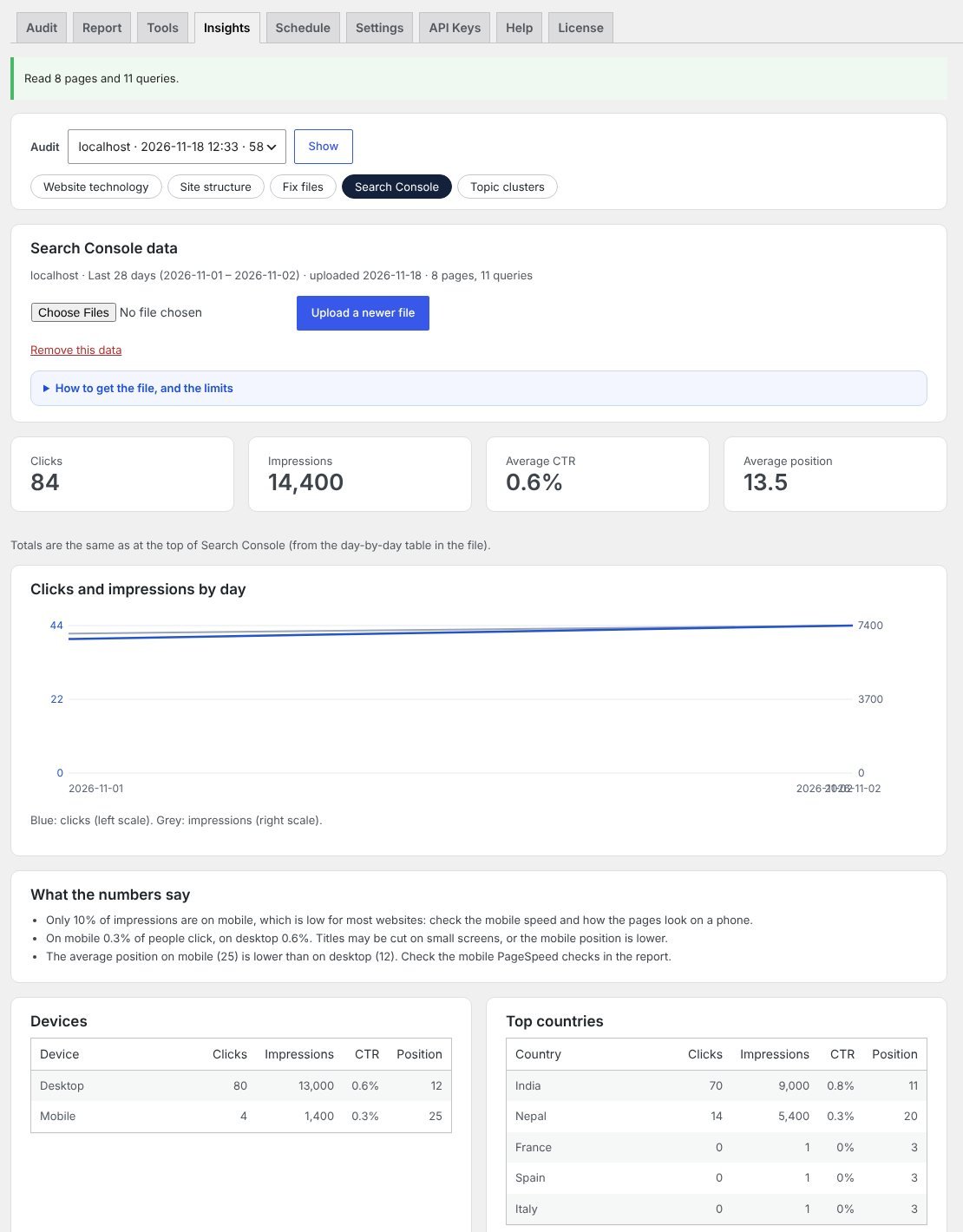
- Website technology. For your own site: WordPress version, theme, every active plugin with its version, PHP version, and how many inactive plugins are installed. For another website: what its public home page shows (platform, theme, plugins that add files, analytics, server, CDN).
- Site structure. Clicks from the home page, the folders of the site, pages that no other page links to, pages with only one link, and the most linked pages. Each row has an Edit link.
- Fix files. Redirect lines for Apache (.htaccess), Nginx or a CSV for a redirect plugin; schema (Article and Breadcrumb, with dates, author and featured image) for any page, or all pages in one ZIP; a CSV list of meta descriptions to write; and a starting robots.txt. The plugin never changes the site: you copy or download the text and use it.
- Search Console. In Google Search Console open Performance › Search results, press Export › Download CSV, and upload that ZIP here. You get the totals, a chart by day, devices, countries, "what the numbers say", the pages to fix first (many impressions and problems in the audit), queries close to page 1 and pages with few clicks. "Fix with AI" drafts titles and descriptions for a page with your Gemini key. No Google login is used; the data is as old as the file.
- Topic clusters. Posts grouped by the main words of their titles, the main page of each group, which posts do not link to it yet, and a list of link ideas.
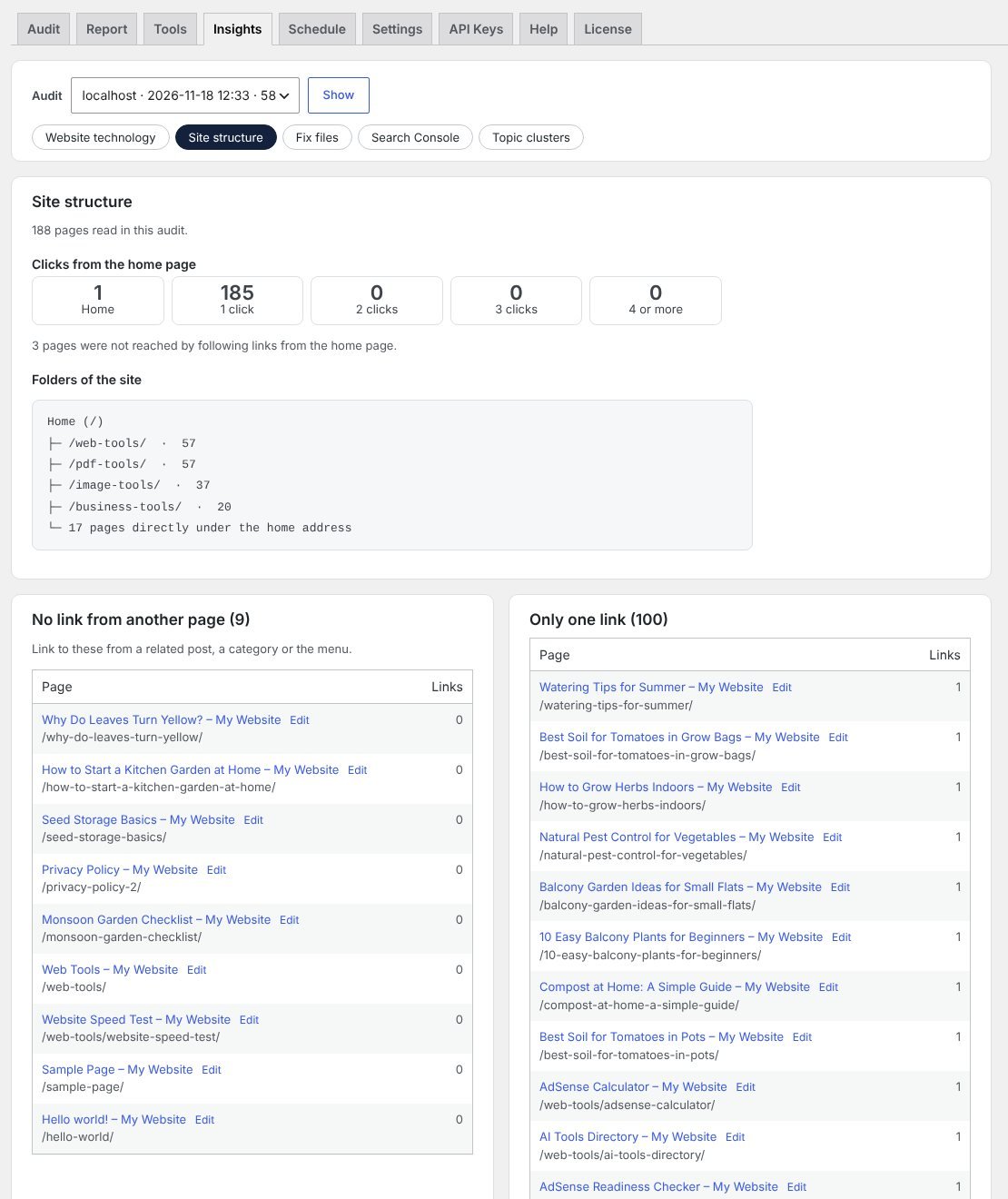
If your server cannot open ZIP files (no ZipArchive), unzip the Search Console file on your computer and upload the CSV files inside it.
7. Tools
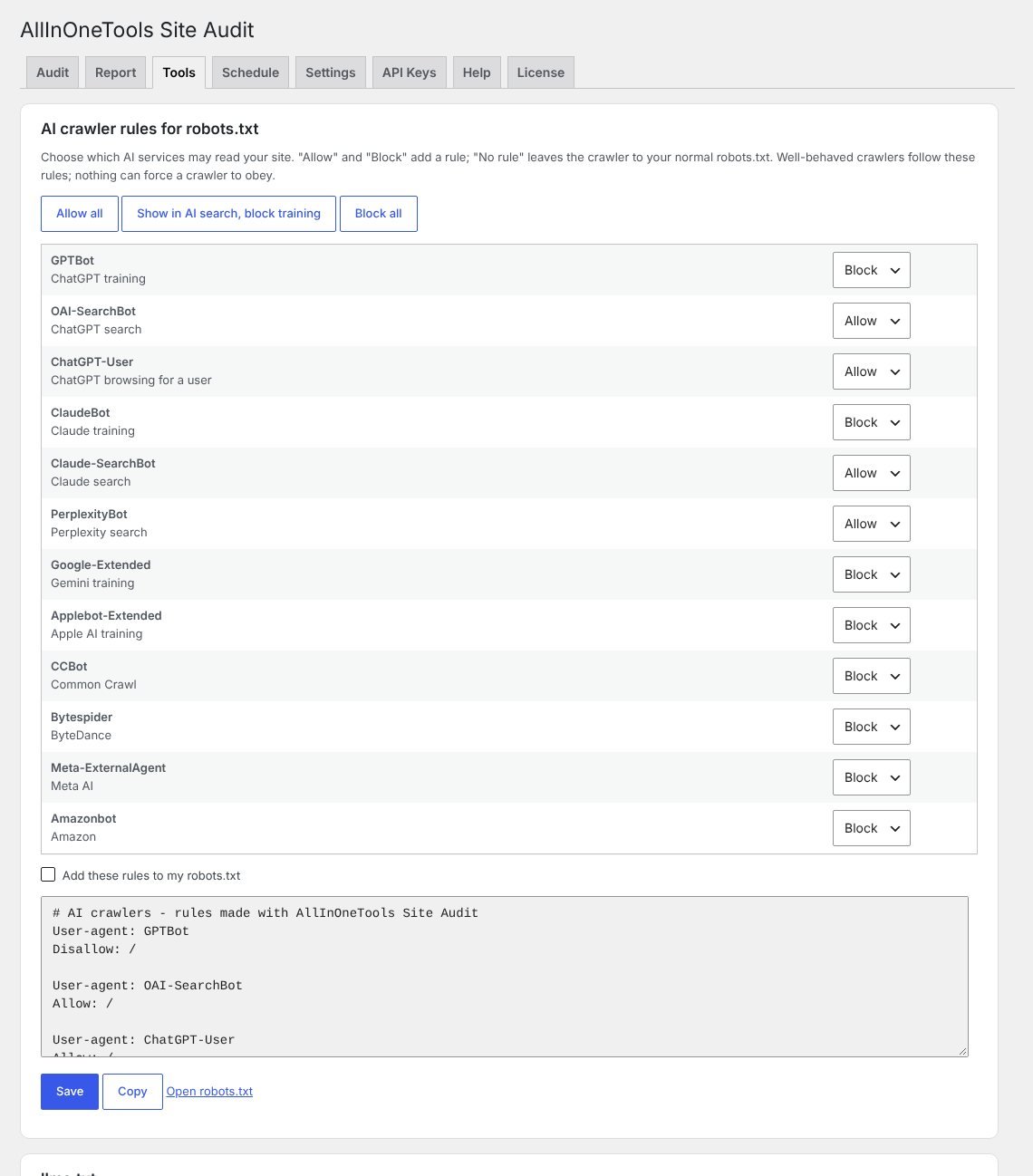
- AI crawler rules for robots.txt: choose Allow, Block or No rule for each AI crawler, or use a preset such as "Show in AI search, block training". Tick "Add these rules to my robots.txt" and Save. If your site has a real robots.txt file, WordPress cannot change it: copy the lines into that file.
- llms.txt: press "Build from my pages and posts", edit the text, tick "Publish it" and Save. It is a new, optional standard; no AI company promises to use it.
- Internal link ideas: posts that get few links, and related posts that could link to them. Matches are by shared words, so read each one first.
- Content brief (Pro): a plan for a new post (needs the Gemini key).
8. Automatic audits and alerts (Pro)
In the Schedule tab choose how often (daily, weekly, every 2 weeks, monthly), the day and the hour, and what to scan: the whole site, only pages changed since the last automatic audit, or a quick check. You can attach the Word report to the e-mail.
Alerts run a light check once a day and e-mail you once when a problem starts and once when it is fixed: the site is hidden from search engines, robots.txt blocks the whole site, the sitemap does not load, the SSL certificate or the domain is about to expire, or the score drops by 10 points or more.
Use Settings > Test e-mail to make sure your site can send e-mail. Many sites need an SMTP plugin.
9. Time, background work and cron
As a guide: one page under a minute; 50 posts a few minutes; several hundred posts 15 minutes or more. PageSpeed, competitors and AI Insights each add a few minutes. It depends on your hosting.
The audit works in small steps, so it does not time out on shared hosting. While the Audit tab is open, your browser keeps it moving. When the tab is closed, WordPress keeps it moving in the background. WordPress background work starts when someone visits the site, so on a site with very few visitors add a real cron job in your hosting panel (Hostinger: Advanced > Cron Jobs; cPanel: Cron Jobs), every 5 minutes:
wget -q -O - https://your-site.com/wp-cron.php?doing_wp_cron >/dev/null 2>&1
10. What the plugin does not measure
- Keyword rankings, backlinks, Domain Authority and competitor traffic. This data is not public and needs paid services.
- How often ChatGPT, Gemini or Perplexity mention your site. "AI search readiness" checks that the site is ready to be read.
- AdSense approval. The decision is Google's.
- Google Search Console data. This may come in a later version.
11. Privacy and outside services
The audit runs on your own server and nothing is sent to the plugin author. Outside services are used only for:
- the websites you audit or compare (their public pages are requested);
- Google PageSpeed, if you add that key (the page address);
- Google Gemini, if you add that key and use AI (audit results and post text);
- with Pro: rdap.org and the domain registry (the domain name, for its age and expiry);
- with Pro: public spam blacklists (a DNS lookup with the server's IP address).
Keys are stored in your WordPress database and are never shown to visitors. When you delete the plugin, audits, settings and keys are removed; titles, descriptions and FAQ sections you saved with Apply stay in your posts.
12. Troubleshooting
- The audit stops moving after I close the page. Add the cron job from section 9.
- "Not checked" on many checks. The reason is shown next to each. A firewall or security plugin may block your server from requesting its own pages; allow requests from your server's own IP.
- Word download says the zip extension is missing. Ask your host to switch on the PHP zip extension, or use PDF / Print.
- No e-mail arrives. Use Settings > Test e-mail, and set up an SMTP plugin.
- Gemini says the limit is used up. The free daily limit is reached; try again later or pick another model.
- The PDF has no colors. In the print window switch on "Background graphics".
13. All checks
| Section | Check |
|---|---|
| Technical SEO | Home page loads |
| Technical SEO | HTTPS |
| Technical SEO | SSL certificate |
| Technical SEO | robots.txt |
| Technical SEO | XML sitemap |
| Technical SEO | Sitemap URLs that fail |
| Technical SEO | Open to search engines |
| Technical SEO | Canonical tag |
| Technical SEO | www and https versions |
| Technical SEO | Redirect chains |
| Technical SEO | Permalink structure |
| Technical SEO | Broken links |
| Technical SEO | Compression |
| Technical SEO | Browser caching |
| Technical SEO | Mixed content |
| Technical SEO | Favicon, language and viewport |
| Technical SEO | 404 page |
| On-page SEO | Title tags |
| On-page SEO | Meta descriptions |
| On-page SEO | One H1 per page |
| On-page SEO | Heading order |
| On-page SEO | Image alt text |
| On-page SEO | Internal links |
| On-page SEO | Open Graph tags |
| On-page SEO | Structured data |
| On-page SEO | Readability |
| On-page SEO | Duplicate titles |
| On-page SEO | Short, clean URLs |
| On-page SEO | Posts competing for the same topic |
| AdSense readiness | Privacy Policy page |
| AdSense readiness | Privacy Policy mentions cookies and advertising |
| AdSense readiness | About page |
| AdSense readiness | Contact page |
| AdSense readiness | Terms page |
| AdSense readiness | Disclaimer page |
| AdSense readiness | Published posts |
| AdSense readiness | Thin posts |
| AdSense readiness | Placeholder content |
| AdSense readiness | ads.txt |
| AdSense readiness | Cookie consent banner |
| AdSense readiness | Menu and navigation |
| AdSense readiness | Domain age |
| AdSense readiness | Content that may break ad policies |
| AdSense readiness | Site is public and secure |
| Trust (E-E-A-T) | Author shown on posts |
| Trust (E-E-A-T) | Dates shown on posts |
| Trust (E-E-A-T) | About page detail |
| Trust (E-E-A-T) | Contact details |
| Trust (E-E-A-T) | Organization or Person schema |
| Trust (E-E-A-T) | Social profiles linked |
| AI search readiness | AI crawlers in robots.txt |
| AI search readiness | llms.txt |
| AI search readiness | Text readable without JavaScript |
| AI search readiness | Question-style headings |
| AI search readiness | Short answer near the top |
| AI search readiness | FAQ sections |
| AI search readiness | Sources linked |
| AI search readiness | Article schema with author and dates |
| Speed and mobile | PageSpeed score (mobile) |
| Speed and mobile | PageSpeed score (desktop) |
| Speed and mobile | Largest Contentful Paint (LCP) |
| Speed and mobile | Layout shift (CLS) |
| Speed and mobile | Interaction delay (INP) |
| Speed and mobile | Server response time |
| Speed and mobile | HTML size |
| Speed and mobile | Render-blocking files |
| Speed and mobile | Modern image formats |
| Speed and mobile | Image width and height set |
| Speed and mobile | Mobile viewport |
| Security | Security headers |
| Security | WordPress and PHP versions |
| Security | Spam blacklists |
| Security | Exposed files |
| Security | Google Safe Browsing |
| E-mail and domain | SPF record |
| E-mail and domain | DMARC record |
| E-mail and domain | Mail (MX) records |
| E-mail and domain | Domain expiry |
| E-mail and domain | Server |
| WordPress health | SEO plugin |
| WordPress health | Orphan posts |
| WordPress health | Posts without a featured image |
| WordPress health | Uncategorized posts |
| WordPress health | Posts not updated in 12 months |
| WordPress health | Drafts and pending posts |
| WordPress health | Comments waiting or spam |
| Technical SEO | Pages closed to search engines (Pro) |
| Technical SEO | Canonical tags on pages (Pro) |
| Technical SEO | Temporary redirects (Pro) |
| Technical SEO | Soft 404 pages (Pro) |
| Technical SEO | Server errors (5xx) (Pro) |
| Technical SEO | Addresses with and without the end slash (Pro) |
| Technical SEO | Paginated pages (Pro) |
| On-page SEO | Image file names (Pro) |
| On-page SEO | Breadcrumbs (Pro) |
| On-page SEO | Schema that repeats or does not match the page (Pro) |
| Speed and mobile | Lazy loading of images (Pro) |
| Speed and mobile | Font loading (Pro) |
| Speed and mobile | Heavy images (Pro) |
| Security | Files loaded from other domains (Pro) |
| AI search readiness | Posts not updated for a long time (Pro) |