AllInOneTools Image Kit · version 1.0.3
Documentation
36 browser-based image tools for WordPress. Visitors' images are processed in their own browser and are not sent to your server. The plugin collects no data and makes no calls to outside services.
1. What is in the download
aiot-image-kit-1.0.3.zip | The plugin. Install this one. |
documentation/ | This guide. |
licensing/ | GPL license and the licenses of the included libraries. |
README-FIRST.txt | The three steps to get started. |
Install the plugin zip itself, not the whole download. If WordPress says "The package could not be installed. No valid plugins were found", you chose the download package: unzip it first and choose aiot-image-kit-1.0.3.zip.
2. Installation
- In WordPress, go to Plugins > Add New Plugin > Upload Plugin (this is WordPress's own button name).
- Choose
aiot-image-kit-1.0.3.zipand click Install Now, then Activate. - A new Image Kit item appears in the admin menu. All 36 tools are switched on.
Host limit too small? The plugin zip is about 11 MB because every library and the English OCR data are included. If your host refuses files of that size, unzip the plugin on your computer, copy the folder aiot-image-kit to wp-content/plugins/ with FTP or your host's file manager, and activate it in Plugins.
Works next to AllInOneTools PDF Kit: both plugins can be active, and tools from both can share a page.
3. Quick start (two minutes)
- Open Image Kit > Help and scroll to Demo pages.
- Choose Published now (or As drafts to check them first) and click Create demo pages.
- Open the new Image Tools page. It lists every tool by category; each card opens a page with that tool.
That is a complete image tools section. You can also place tools on your own pages, as described next.
4. Adding a tool to a page
The plugin adds only the tool workspace: add area, settings, preview and download. It never adds an H1, page text, FAQ or links to other sites, so the page title, text and SEO stay yours.
Block editor (Gutenberg)
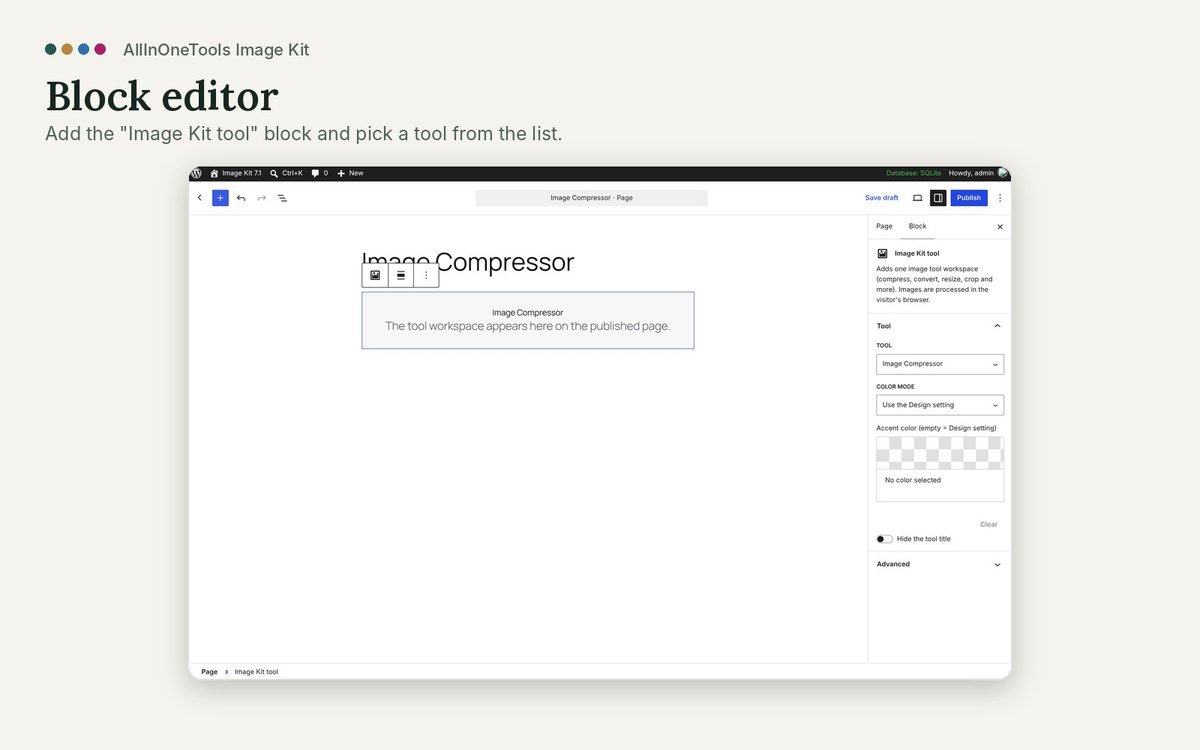
- Edit a page and add the Image Kit tool block (type
/image kit). - Pick a tool in the block settings on the right. Optional: color mode, accent color, hide the title.
- The editor shows a placeholder; the working tool appears on the published page and in Preview.
Elementor
- Edit the page with Elementor (version 3.5 or newer).
- In the widget panel, find the Image Kit group and drag Image Kit Tool onto the page.
- Pick a tool in Content. The Style tab has the color mode and accent color.
- Inside the editor the widget shows a placeholder; open Preview or the live page to use the tool.
Shortcode (any editor, page builder or widget area)
[aiot_image tool="image-compressor"]| Option | What it does |
|---|---|
tool | Required. The tool's name from the table below or Image Kit > Shortcodes. |
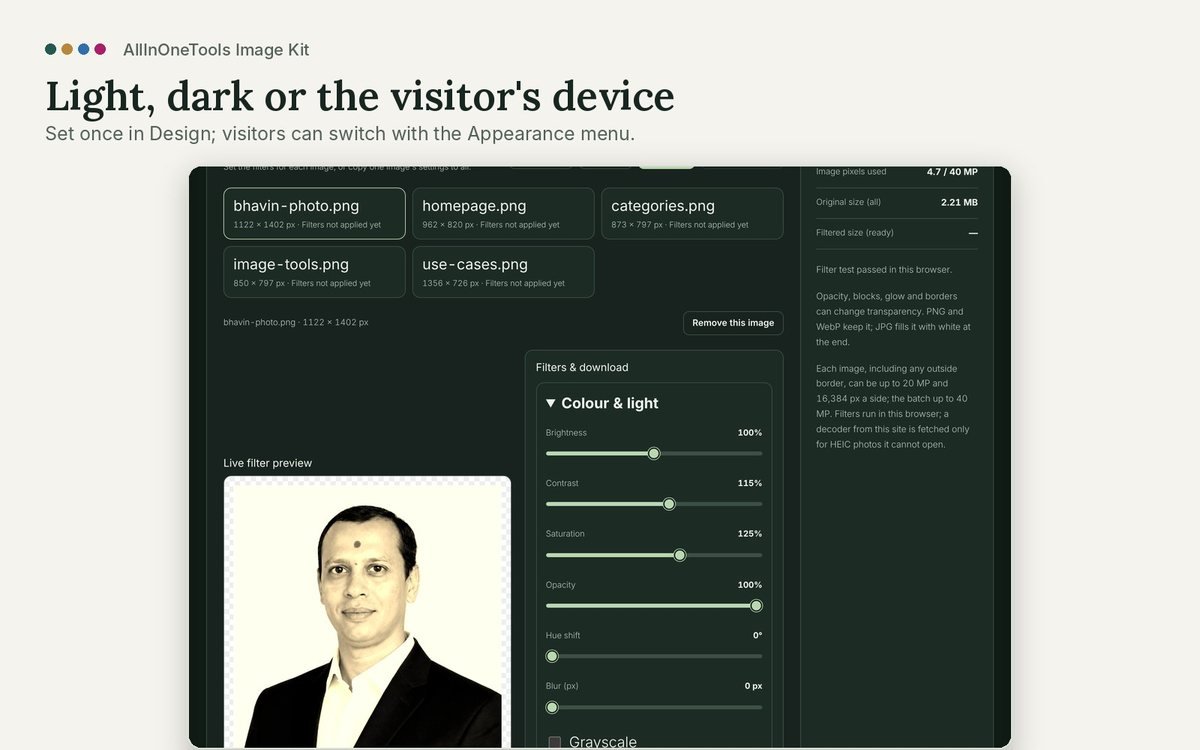
mode="dark" | light, dark or system (follow the visitor's device). Overrides the Design setting for this tool. |
accent="#2d4bd8" | Accent color for this tool only. |
title="no" | Hides the tool's title (screen readers still read it). |
Several tools on one page: different tools can share a page and work independently. The same tool can be placed once per page; a second copy is skipped (only logged-in editors see a short note).
5. Settings
Tools tab
Switch tools on or off, one by one or a whole category with All on. A switched-off tool shows nothing where it is placed and loads no files (logged-in editors see a short note instead).
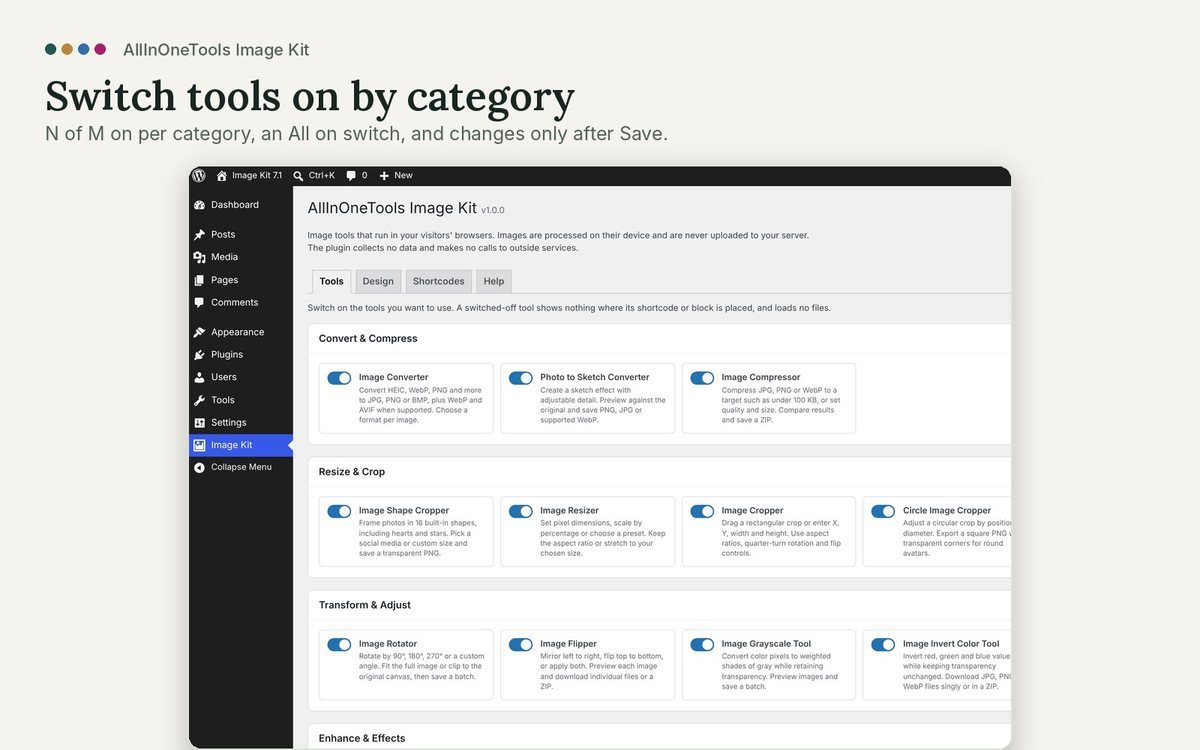
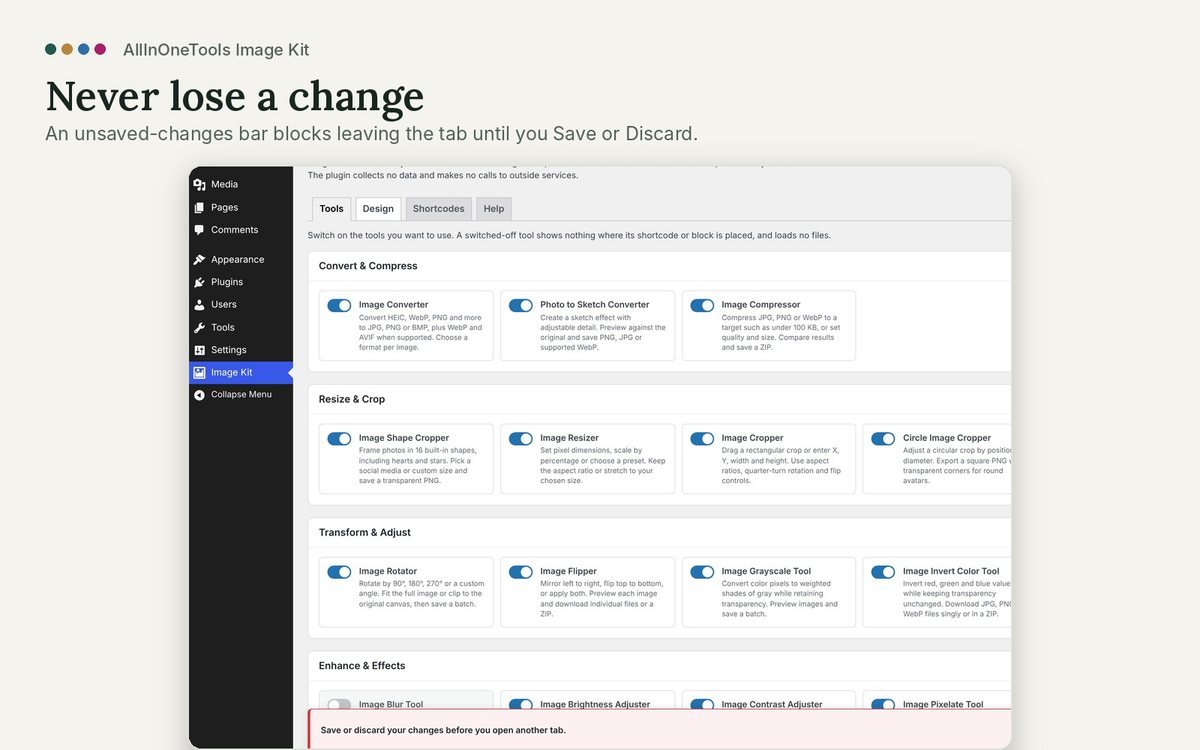
If you leave the tab with unsaved changes, a bar reminds you to save or discard them.
Tools added in a future update are switched on automatically; tools you switched off stay off.
Design tab
One design for every tool. Leave a color empty to keep the built-in color.
| Color mode | Follow the visitor's device, always light, or always dark. |
| Accent color | Buttons, links and highlights. A lighter shade is used in dark mode, and a darker shade for small text so it stays readable. |
| Light colors / Dark colors | Background, panels and cards, text, borders – separately for each mode. |
| Font | Kit style (serif headings, sans-serif text, using fonts already on the device – nothing is downloaded), your theme's font, or the device's system font. |
| Text size | 90%, 100%, 110% or 120%. Independent of your theme's root font size. |
| Corner radius | 0–24 px. |
| Maximum width | 0 fills your theme's content area; any other value centers the tool at that width. |
| Space around the workspace | None (transparent background), compact or normal. |
| Tool title | H2, H3, H4 or hidden; and whether to show the short line under it. |
| Light/dark switch | Shows the Appearance menu inside each workspace so visitors can switch between light and dark. Their choice lasts until the page is reloaded; nothing is stored. |
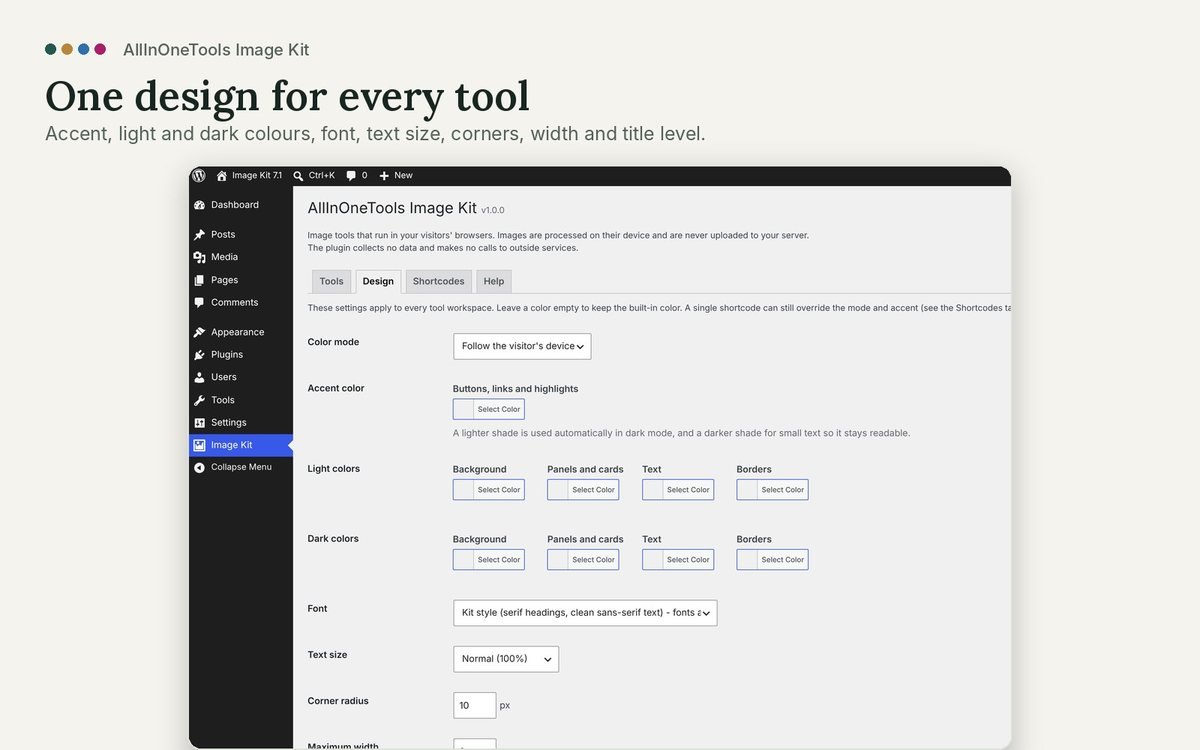
Reset design to default at the bottom of the tab returns every design setting to the built-in values.
Shortcodes tab
Every tool's shortcode with a Copy button, its category and whether it is on, plus the options of the directory shortcode.
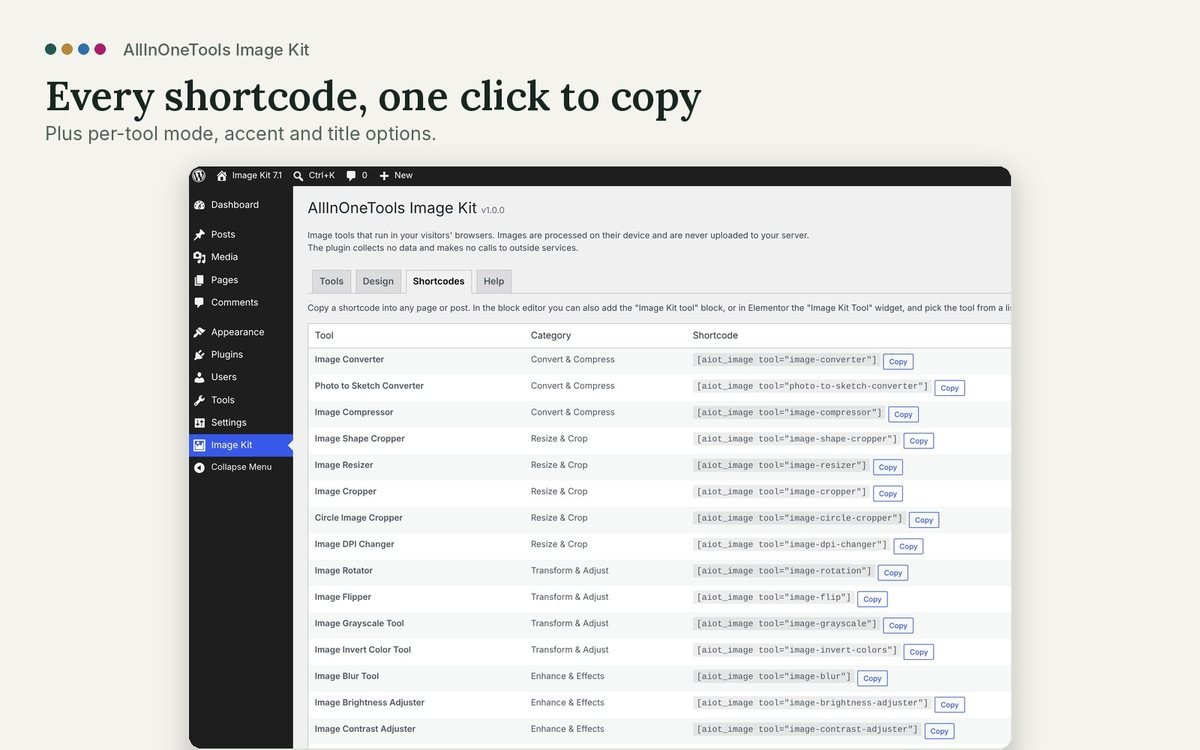
Help tab
How it works, privacy, text recognition, background removal, recommended theme, speed and caching, demo pages.
6. Tool directory and demo pages
[aiot_image_index] shows the switched-on tools as cards, grouped by category. Each card links to the published page that holds that tool – a demo page, or any page where you placed the tool's shortcode or block. Tools that are not on any published page are shown without a link.
category="convert,resize" | Only these categories: convert, resize, transform, enhance, edit, utilities. |
mode="dark" | light, dark or system. |
title="no" | Hide the category headings. |
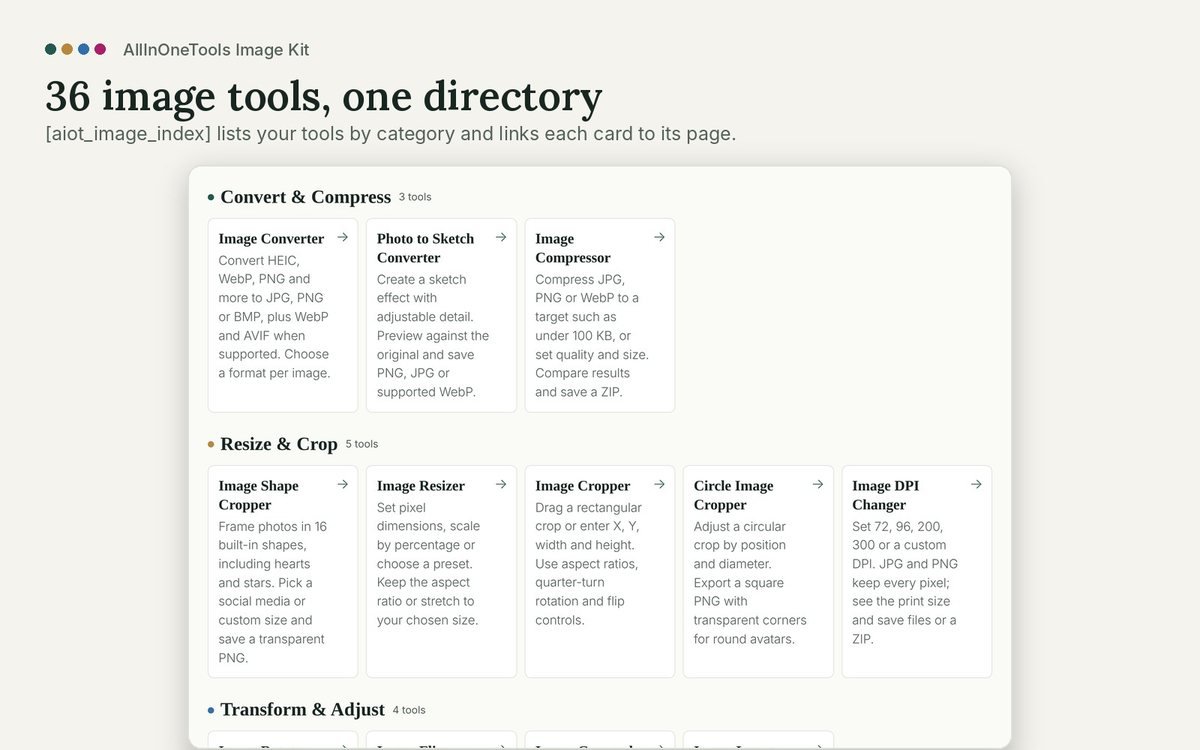
Demo pages (Image Kit > Help) creates an "Image Tools" page with the directory and one child page per switched-on tool, with a short intro line and the shortcode. Run it again after switching more tools on: only missing pages are added. Delete demo pages removes only the pages this plugin created.
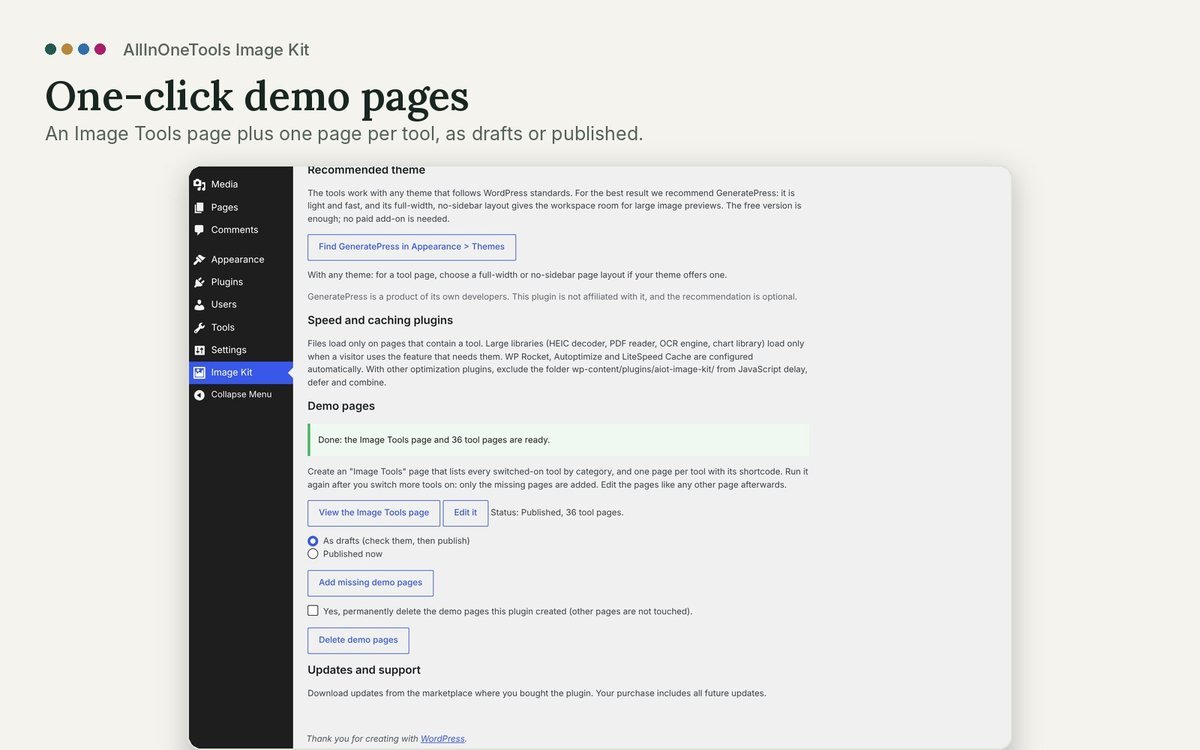
7. All 36 tools and their shortcodes
| Tool | Shortcode | What it does |
|---|---|---|
| Convert 3 tools | ||
| Image Converter | [aiot_image tool="image-converter"] | Convert HEIC, WebP, PNG and more to JPG, PNG or BMP, plus WebP and AVIF when supported. Choose a format per image. |
| Photo to Sketch Converter | [aiot_image tool="photo-to-sketch-converter"] | Create a sketch effect with adjustable detail. Preview against the original and save PNG, JPG or supported WebP. |
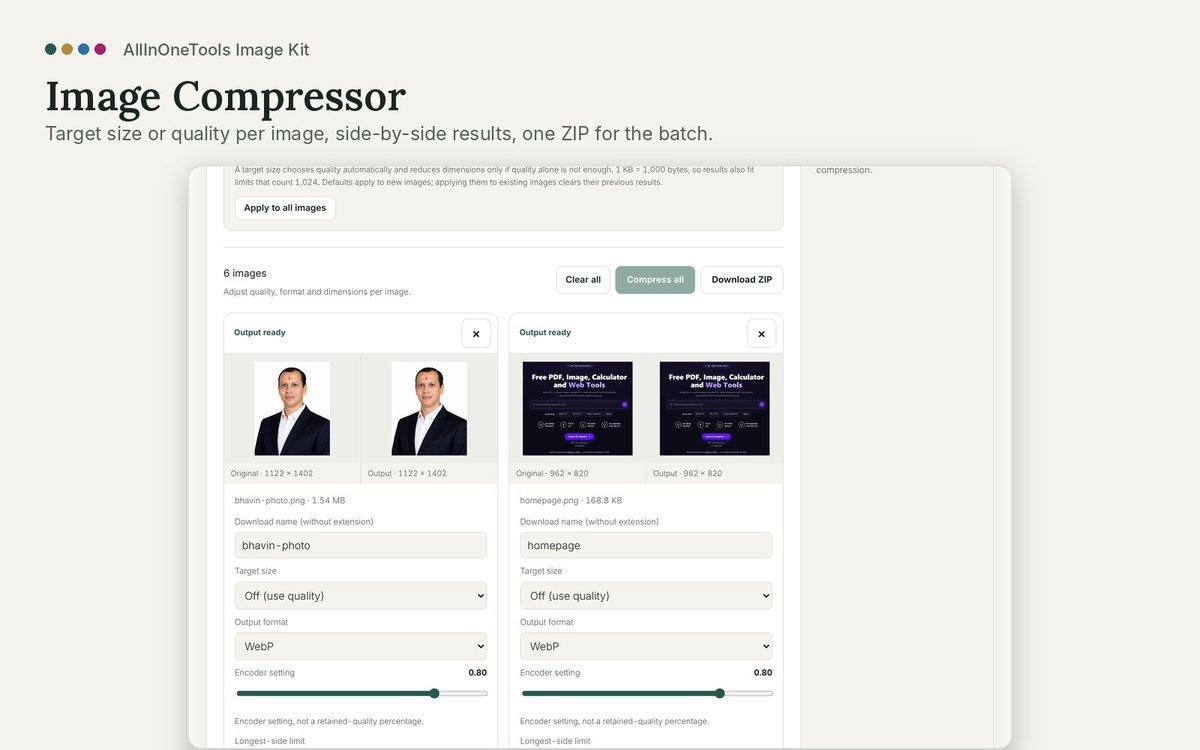
| Image Compressor | [aiot_image tool="image-compressor"] | Compress JPG, PNG or WebP to a target such as under 100 KB, or set quality and size. Compare results and save a ZIP. |
| Resize and crop 5 tools | ||
| Image Shape Cropper | [aiot_image tool="image-shape-cropper"] | Frame photos in 16 built-in shapes, including hearts and stars. Pick a social media or custom size and save a transparent PNG. |
| Image Resizer | [aiot_image tool="image-resizer"] | Set pixel dimensions, scale by percentage or choose a preset. Keep the aspect ratio or stretch to your chosen size. |
| Image Cropper | [aiot_image tool="image-cropper"] | Drag a rectangular crop or enter X, Y, width and height. Use aspect ratios, quarter-turn rotation and flip controls. |
| Circle Image Cropper | [aiot_image tool="image-circle-cropper"] | Adjust a circular crop by position and diameter. Export a square PNG with transparent corners for round avatars. |
| Image DPI Changer | [aiot_image tool="image-dpi-changer"] | Set 72, 96, 200, 300 or a custom DPI. JPG and PNG keep every pixel; see the print size and save files or a ZIP. |
| Transform 4 tools | ||
| Image Rotator | [aiot_image tool="image-rotation"] | Rotate by 90°, 180°, 270° or a custom angle. Fit the full image or clip to the original canvas, then save a batch. |
| Image Flipper | [aiot_image tool="image-flip"] | Mirror left to right, flip top to bottom, or apply both. Preview each image and download individual files or a ZIP. |
| Image Grayscale Tool | [aiot_image tool="image-grayscale"] | Convert color pixels to weighted shades of gray while retaining transparency. Preview images and save a batch. |
| Image Invert Color Tool | [aiot_image tool="image-invert-colors"] | Invert red, green and blue values while keeping transparency unchanged. Download JPG, PNG or WebP files singly or in a ZIP. |
| Enhance 7 tools | ||
| Image Blur Tool | [aiot_image tool="image-blur"] | Apply adjustable Gaussian blur to the whole image. Preview the result and save PNG, JPG or supported WebP files. |
| Image Brightness Adjuster | [aiot_image tool="image-brightness-adjuster"] | Lighten or darken image pixels with a live adjustment. Compare the preview before exporting individual files or a ZIP. |
| Image Contrast Adjuster | [aiot_image tool="image-contrast-adjuster"] | Increase or reduce the difference between light and dark pixel values. Preview contrast changes and export a batch. |
| Image Pixelate Tool | [aiot_image tool="image-pixelate-tool"] | Pixelate the whole image or selected rectangles. Set block size, edit region coordinates and save individual files or a ZIP. |
| Image Filter Tool | [aiot_image tool="image-filter-tool"] | Combine color adjustments with effects such as duotone, posterize, sharpen and vignette. Preview and export a batch. |
| Image Upscaler | [aiot_image tool="image-upscaler"] | Enlarge images 1.5×, 2× or 4× with Photo or Pixel Art resampling. Export JPG, PNG or WebP; missing detail is not rebuilt. |
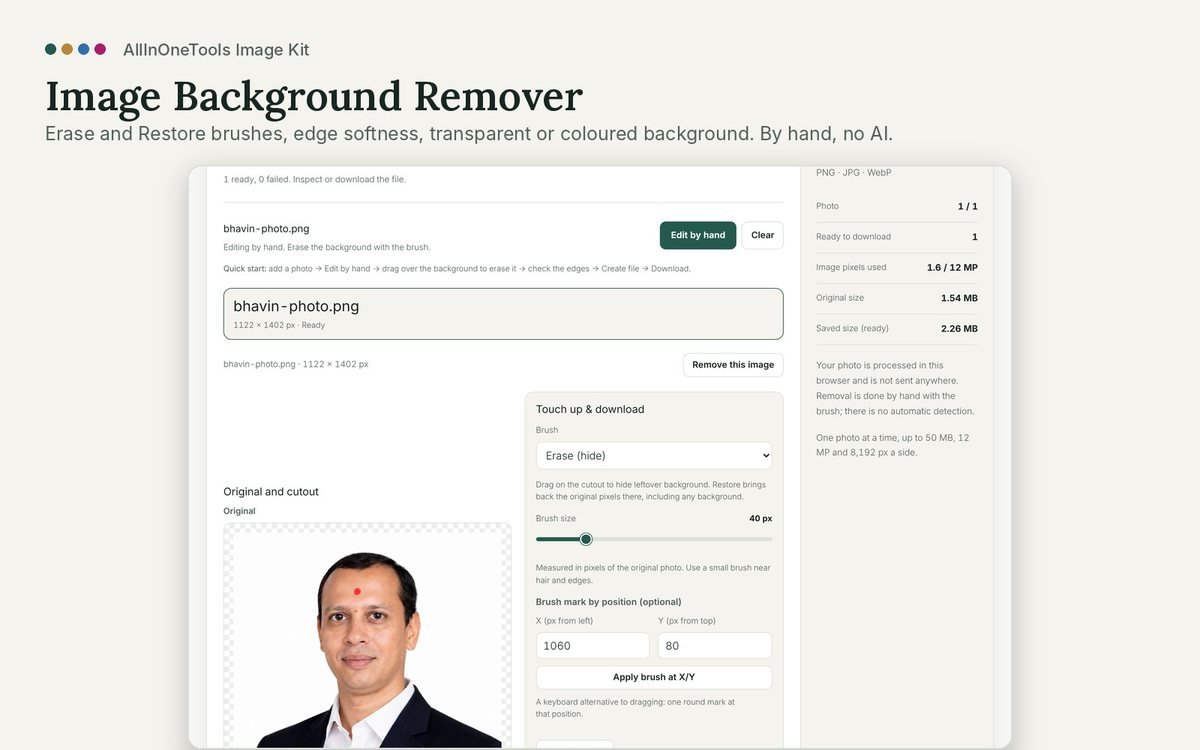
| Image Background Remover | [aiot_image tool="image-background-remover"] | Remove a background automatically on the device, touch up with erase and restore brushes, and save a transparent PNG or a new background. |
| Edit 4 tools | ||
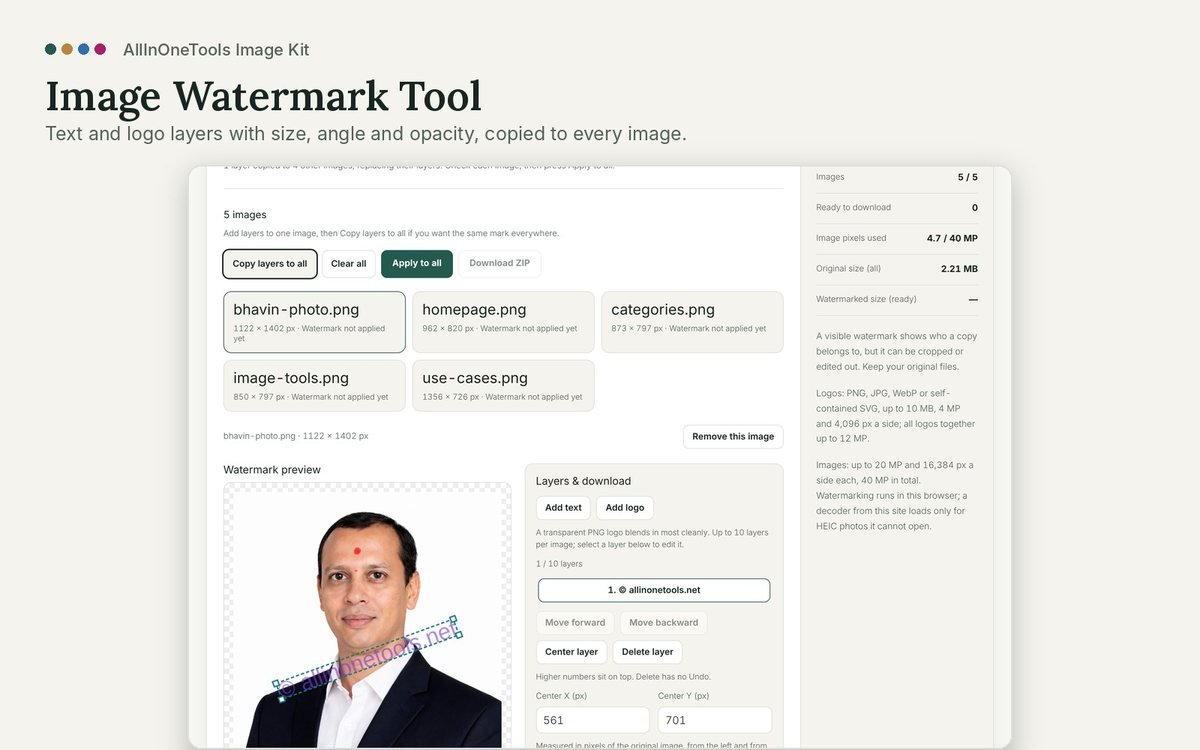
| Image Watermark Tool | [aiot_image tool="image-watermark-tool"] | Layer text and logo watermarks with position, size, rotation and opacity controls. Export individual images or a ZIP. |
| Image Border Adder | [aiot_image tool="image-border-adder"] | Set border color, edge widths, corner radius and inside, centered or outside placement. Preview the frame and export a batch. |
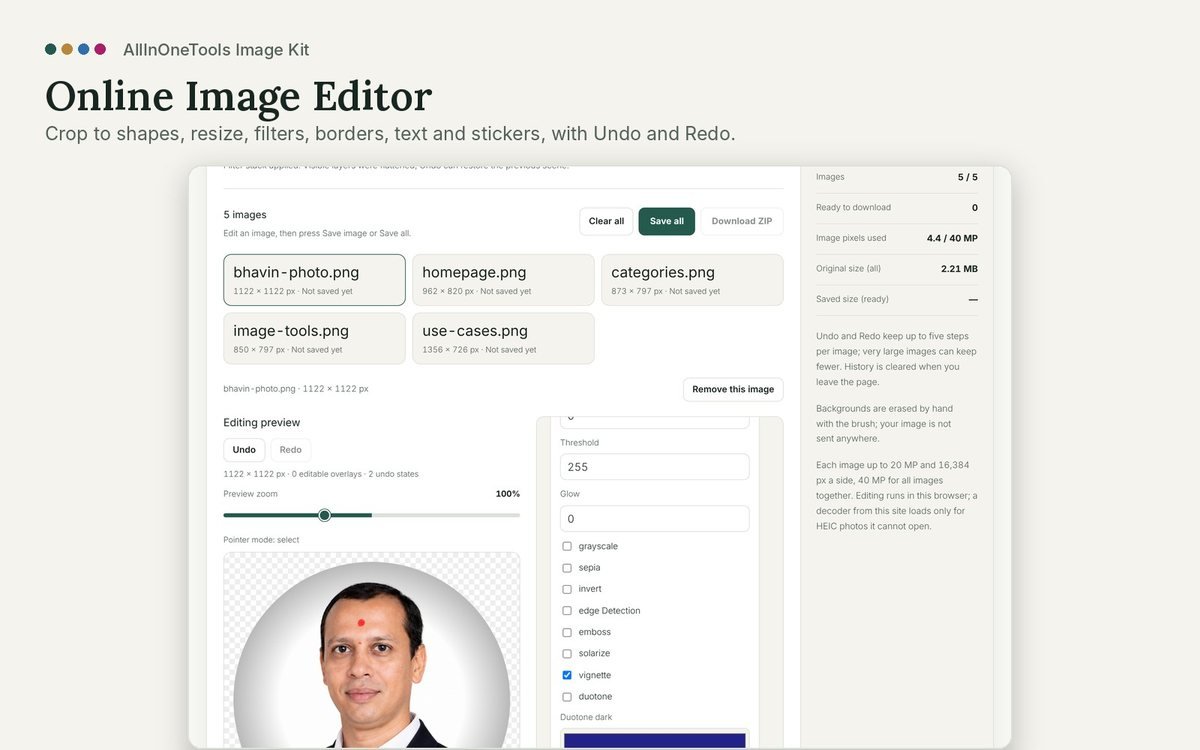
| Online Image Editor | [aiot_image tool="online-image-editor"] | Crop, resize, rotate, add filters, erase backgrounds by hand and layer text, logos or shapes. Review edits before exporting. |
| Meme Generator | [aiot_image tool="online-meme-generator"] | Add outlined captions and movable text or image layers. Adjust layout and save PNG, JPG or supported WebP memes. |
| Utilities 13 tools | ||
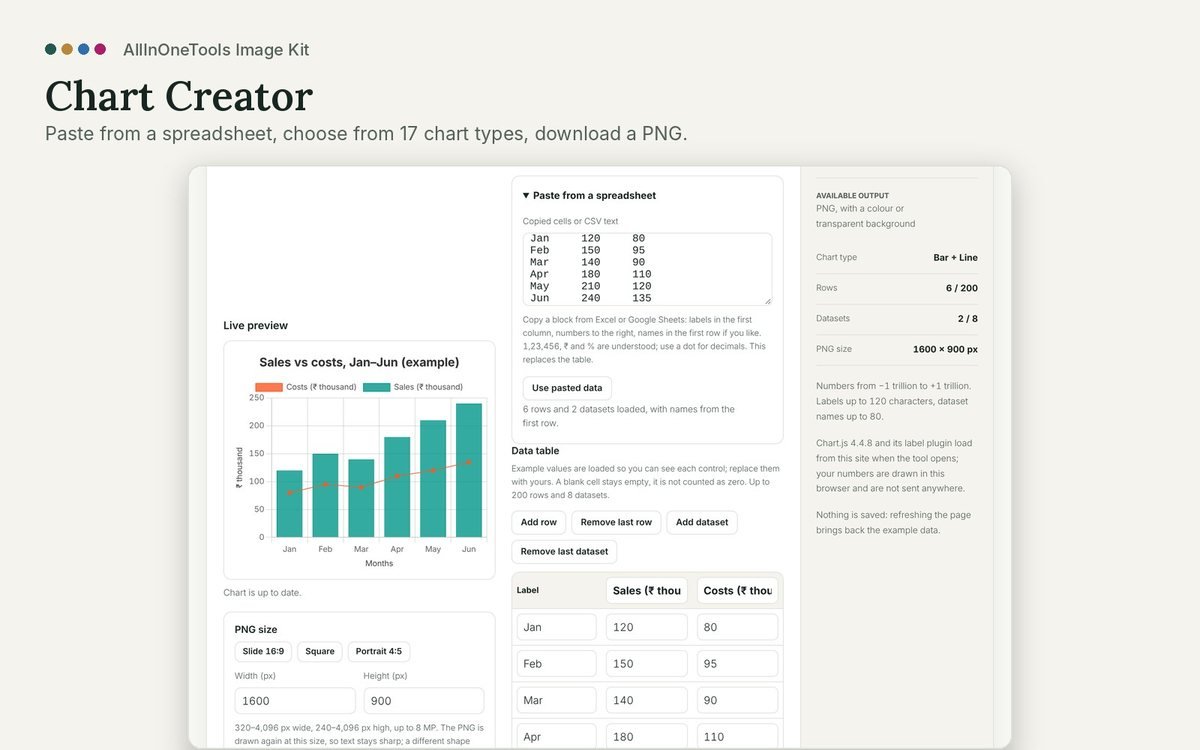
| Chart Creator | [aiot_image tool="chart-graph-creator"] | Create 17 chart options, including pie, scatter and mixed charts. Edit data, labels and colors, then download a PNG. |
| Icon & Emoji Downloader | [aiot_image tool="emoji-icon-download-tool"] | Customize icons, emojis and symbols. Download icons as SVG or PNG, save emojis as PNG, or copy icon SVG and HTML/CSS. |
| Image Color Picker | [aiot_image tool="image-color-picker"] | Sample image pixels with a magnifier. Copy HEX, RGB, HSL or HSV, inspect transparency and save a pinned color palette. |
| Image EXIF Viewer | [aiot_image tool="image-exif-viewer"] | Read camera, date and GPS tags, search every field and compare two photos. Export CSV, JSON or PDF, or save a copy without metadata. |
| Image Splitter (Grid) | [aiot_image tool="online-image-splitter"] | Split a whole image or selected region by rows, columns or tile pixels. Add overlap and download the tiles in a ZIP. |
| Image Collage Maker | [aiot_image tool="image-collage-maker"] | Arrange photos in 16 layouts or a custom grid. Adjust cells, spacing, backgrounds, text and stickers, then save the collage. |
| HTML to Image Converter | [aiot_image tool="html-to-image-converter"] | Render supported static HTML and CSS as an image. Set capture dimensions and scale, then save PNG, JPG or supported WebP. |
| Image to HTML Converter | [aiot_image tool="image-to-html-converter"] | Embed an image as a Base64 img tag, read English text with OCR, or build a color grid. Copy or download the HTML. |
| Image Carousel Maker | [aiot_image tool="image-carousel-maker"] | Arrange slides with captions, alt text, arrows, dots and autoplay controls. Preview and export HTML, CSS and JavaScript. |
| Favicon Generator | [aiot_image tool="favicon-generator"] | Create six PNG icon sizes, a multi-size ICO and a web manifest. Adjust crop, padding and colors, then download a ZIP. |
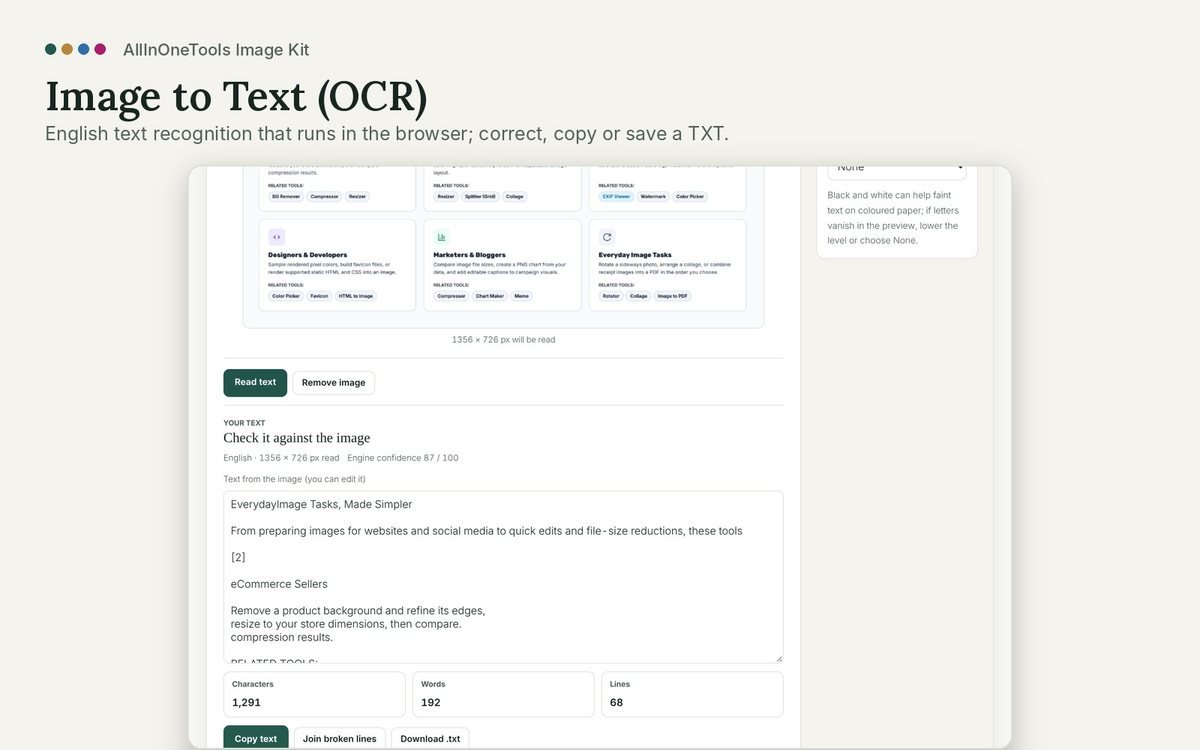
| Image to Text Converter | [aiot_image tool="image-to-text-converter"] | Recognize printed English text with OCR. Turn or clean up the image, correct the text and copy or save a TXT file. |
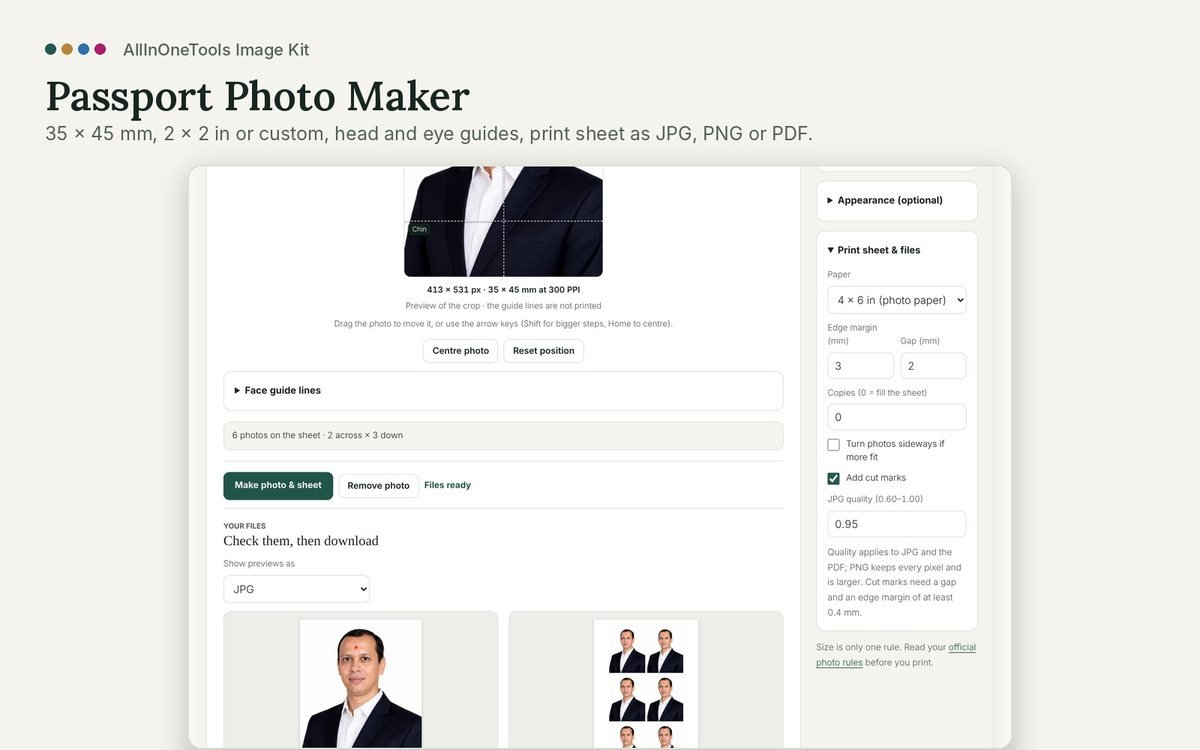
| Passport Photo Maker | [aiot_image tool="passport-photo-maker"] | Frame an ID photo with manual crop controls and guides. Save JPG or PNG photos and print sheets, plus a PDF at your chosen paper size. |
| Image to Base64 Converter | [aiot_image tool="image-to-base64-converter"] | Turn an image into a Base64 data URI, CSS or img tag, or paste Base64 to get the image file back. Copy or save the code. |
Image to PDF and PDF to Image are part of AllInOneTools PDF Kit and are not included in this plugin.
8. Text recognition (OCR) and background removal
Text recognition
The Image to Text Converter and the "Read the text" mode of the Image to HTML Converter recognize printed English text. The engine (Tesseract.js) and the English language data (about 5 MB) are part of the plugin and load from your own site, only when a visitor starts recognition. Other languages are not available in this version. Results depend on the image: clear, straight, well-lit printed text works well; handwriting and small or blurred text may come out with mistakes, so visitors can correct the text before copying it.
Background removal
In the Image Background Remover, visitors press Remove background: a small model (U2-Net-p, Apache-2.0) finds the subject in their browser with ONNX Runtime Web (MIT). The model and engine (about 16 MB) are part of the plugin, load from your site only when the button is pressed, and the photo is never uploaded. It works well on clear subjects such as people, products and food; hair and fine edges may need a touch-up with the Erase and Restore brushes. Visitors can also skip it and work fully by hand. The background panel of the Online Image Editor works by hand.
9. Privacy
- Images are opened and processed with JavaScript in the visitor's browser. Nothing is sent to your server or to anyone else.
- The plugin sets no cookies, saves nothing on your server, has no tracking, analytics or license check, and makes no calls to outside services. All libraries, decoders and language data are included and load from your site.
- Three tools can keep something in the visitor's own browser, and only after the visitor presses Save: the Image Splitter (saved setups), the Image EXIF Viewer (saved reports) and the Image to HTML Converter (saved results). Each has a button that removes it. This stays on the visitor's device; you never receive it.
- Two things can contact another server, and only when the visitor chooses them: the HTML to Image Converter loads
https://images written in the visitor's own HTML after the visitor turns on "Web images", and the Image EXIF Viewer opens a map only when the visitor clicks the map link of a photo that has GPS data. - The HTML to Image Converter works with code the visitor types or a file they choose. Fetching a live web page by its address is not offered, because that would need an outside service.
- On the page with the Icon & Emoji Downloader, the plugin turns off WordPress's own emoji script, which would otherwise load emoji pictures from WordPress.org. Emoji are drawn with the fonts on the visitor's device.
For your privacy policy, a suitable sentence is: "Our image tools process your images in your browser. Your images are not sent to our server."
10. Speed, caching and optimization plugins
- CSS and JavaScript load only on pages that contain a tool, and only for the tools on that page.
- Large libraries load only when a visitor uses the feature that needs them: the HEIC decoder when a HEIC photo is added, the PDF reader for PDF input, the TIFF reader for TIFF input, the OCR engine when recognition starts. The Chart Creator loads its chart library when the tool scrolls into view or is touched. If a library fails to load on a weak connection, it is tried again on the next try, without a page reload.
- WP Rocket, Autoptimize and LiteSpeed Cache are configured automatically: the plugin's files and inline loader are excluded from JavaScript delay, defer, combine and "remove unused CSS".
- Other optimization plugins: exclude the folder
wp-content/plugins/aiot-image-kit/and inline scripts containingaiotikLibfrom JavaScript delay, defer and combine. - After installing or updating, clear your page cache (and in WP Rocket, "Clear Used CSS").
11. Themes
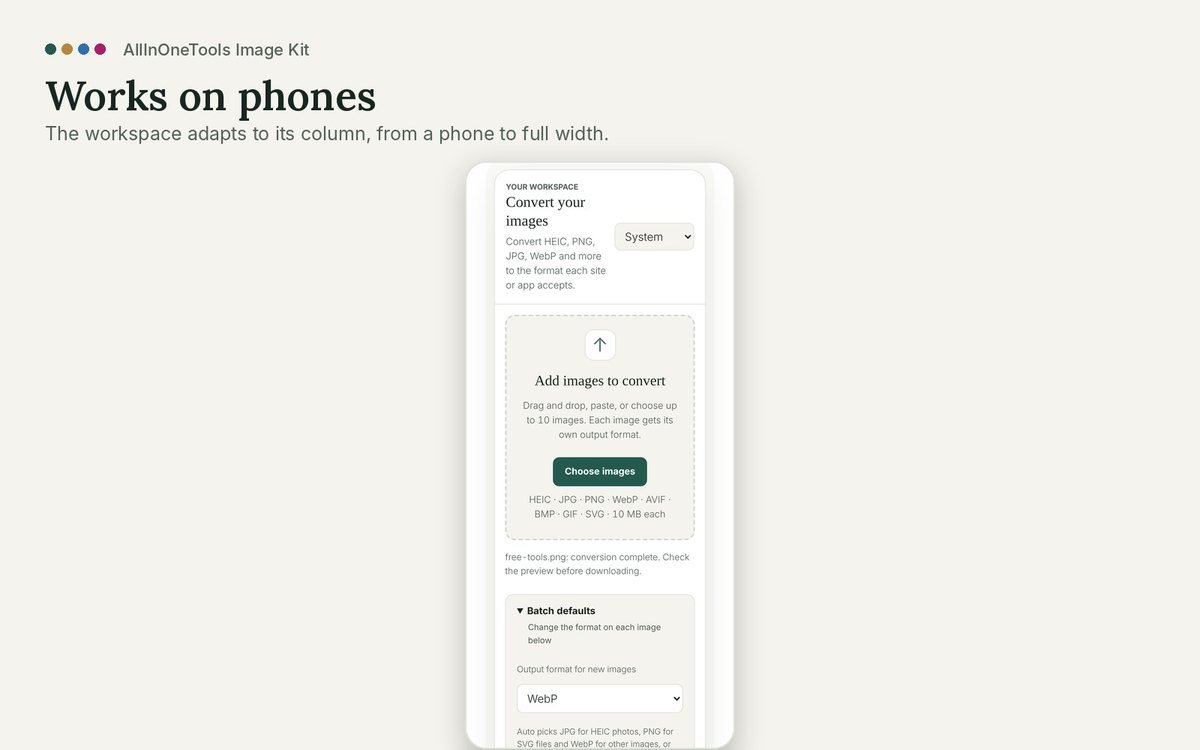
The tools work with any theme that follows WordPress standards; they adapt to the width your theme gives them, and they reset common theme styles (uppercase buttons, letter spacing) inside the workspace. Tested with Twenty Seventeen, Twenty Twenty, Twenty Twenty-One and Twenty Twenty-Five.
Recommended (optional): GeneratePress (free). It is light and fast, and its full-width, no-sidebar layout gives the workspace room for large image previews. With any theme, choose a full-width or no-sidebar layout for tool pages if your theme offers one. GeneratePress is a product of its own developers; this plugin is not affiliated with it.
12. Browsers and limits
- Current Chrome, Edge, Firefox and Safari on desktop and mobile.
- Each workspace shows its own limits next to the add area (for example 10 files and 10 MB each in the Image Compressor). Very large images are also limited by the visitor's device memory; when the browser cannot create an image that large, the tool says so.
- WebP and AVIF output are offered only when the visitor's browser can actually create them.
- HEIC photos (iPhone) are opened with the browser's own decoder where available, otherwise with the included decoder.
- The Image Upscaler enlarges with smooth or pixel-art resampling; it cannot rebuild detail that is not in the photo.
- The tool workspaces are in English; the admin screens are translation-ready (
languages/aiot-image-kit.pot).
13. FAQ and troubleshooting
- The tool doesn't appear on the page.
- Check that the tool is switched on in Image Kit > Tools and the shortcode's tool name is right (logged-in editors see a note explaining the problem). In the block editor and Elementor editor you see a placeholder; open the published page or Preview.
- The tool appears, but nothing happens after adding an image.
- An optimization plugin is probably delaying or combining JavaScript. Clear its cache; for plugins other than WP Rocket, Autoptimize or LiteSpeed Cache, add the exclusions in section 10.
- The tool looks unstyled for a moment, or fonts look different.
- Clear the page cache and "remove unused CSS" cache. For a different font, use the Design tab.
- The layout is cramped.
- Use a full-width or no-sidebar page layout, or set Maximum width in the Design tab. In narrow columns the workspace stacks its panels; Expand workspace opens it full screen.
- Can it remove backgrounds automatically?
- Yes, in the Image Background Remover, on the visitor's device; see section 8.
- Can OCR read Hindi, Gujarati or other languages?
- Not in this version; it reads English.
- Can I change the texts inside the tools?
- Not from the settings in this version. The title and page text around the tool are yours to write.
- Does it work on multisite?
- Yes, activate it per site; each site has its own settings.
- Does anything send images to a server?
- No. See Privacy.
14. For developers
aiotik_index_links (filter) | Change which page each directory card links to. Receives and returns an array slug => page ID or URL. |
| CSS | Each tool is wrapped in <div id="aiotik-SLUG" class="aiotik-tool">; colors are CSS custom properties (--paper, --surface, --text, --line, --accent …). Prefer the Design tab; custom CSS should target .aiotik-tool. |
| Libraries | All libraries are in assets/libs/; their address is set in window.aiotikLib by a small inline loader on tool pages. |
15. Updating and uninstalling
Update: download the new version from your Downloads page, then in Plugins > Add New Plugin > Upload Plugin choose the new zip and click Replace current with uploaded. Settings are kept. Clear your page cache afterwards.
Uninstall: deactivating keeps your settings. Deleting the plugin removes its settings. Pages you made (including demo pages) are your content and are not deleted; remove demo pages first with Delete demo pages if you want them gone.
16. Support
Support is given through the item's Support tab on the marketplace, following the marketplace's support policy: questions about the plugin's features, help with reported bugs and issues, and help with the included files. Customization, installation services and help with third-party themes or plugins are not included.
When you ask for help, please include: WordPress and PHP version, your theme, the page link, which tool, and what you see (a screenshot helps). Please don't send customer images.
17. Credits and licenses
| Included | License |
|---|---|
| heic2any 0.0.4 (includes libheif) | MIT; libheif LGPL-3.0 |
| heic-to 1.6.6 (libheif) | LGPL-3.0 |
| PDF.js 6.4.299 – Mozilla Foundation | Apache License 2.0 |
| UTIF.js 3.1.0 and pako 1.0.11 | MIT; MIT and Zlib |
| Tesseract.js 5.1.1 and tesseract.js-core 5.1.1; English language data from tessdata | Apache License 2.0 |
| Chart.js 4.4.8 and chartjs-plugin-datalabels 2.2.0 | MIT |
| html2canvas 1.4.1 | MIT |
| ONNX Runtime Web 1.20.1 – Microsoft (background removal engine) | MIT |
| U2-Net-p model weights – Xuebin Qin et al. (background removal) | Apache License 2.0 |
| Font Awesome Free 6.7.2 icon paths (Icon & Emoji Downloader) | CC BY 4.0 |
The plugin's own code is licensed under the GPL version 2 or later. License texts are in the licensing/ folder and inside the plugin next to each library.
18. Changelog
1.0.3
- Image Background Remover: the automatic engine now starts on hosts that send .mjs or .wasm files with the wrong type.
1.0.2
- Image Background Remover: new automatic "Remove background" button, on the visitor's device.
- Layout fix: the preview no longer covers the settings in 15 editing tools at medium widths.
1.0.1
- Text recognition: English language data is now shipped uncompressed.
- Elementor widget: output handling tidied for Plugin Check.
- Tested with WordPress 6.2 to 7.1.
1.0.0
- First release: 36 image tools in 6 categories; Tools, Design, Shortcodes and Help settings; block, Elementor widget and shortcode; tool directory and one-click demo pages; English text recognition included.